
Pagination styles and category pictures - Enardo
This is a Pro feature. Enardo Pro adds three ways to page through a listing and a picture for every category. The picture shows on the category's archive, on the topic cards of the home page and on the Categories page.
#Choose how a listing pages
The posts page switches to Numbers, no reload as soon as Pro is active: the page numbers swap the posts in place. Archive and search listings keep classic numbered pages until you pick a style.
Open the template
Go to AppearanceEditorTemplates and open Blog Home, Archive or Search.
Select the pagination
Click the row of page links under the posts. The block is Pagination. Use the block toolbar's parent selector if a single link is selected instead.
Pick a style
In the block sidebar, choose one of the styles below, then save the template.
Page numbers that replace the posts without loading a new page.
One button that adds the next page of posts under the current ones.
The next page loads by itself as the reader nears the end of the list.
The numbers themselves have two looks. Select the Page Numbers block inside the pagination and choose Boxed or Plain.
With reduced motion, new posts appear without movement.
To keep classic page loads on the posts page, select its Query Loop block and remove the enardo-post-list class under Advanced, Additional CSS class(es). The listing then stays on numbered pages.
#Add a picture to a category
Edit the category
Go to PostsCategories and open a category.
Set the picture
Choose an image for the Picture field, then click Update.
Check the archive
Open the category on your site. The picture shows under the description, 200 pixels tall across the column and cropped to fill it.
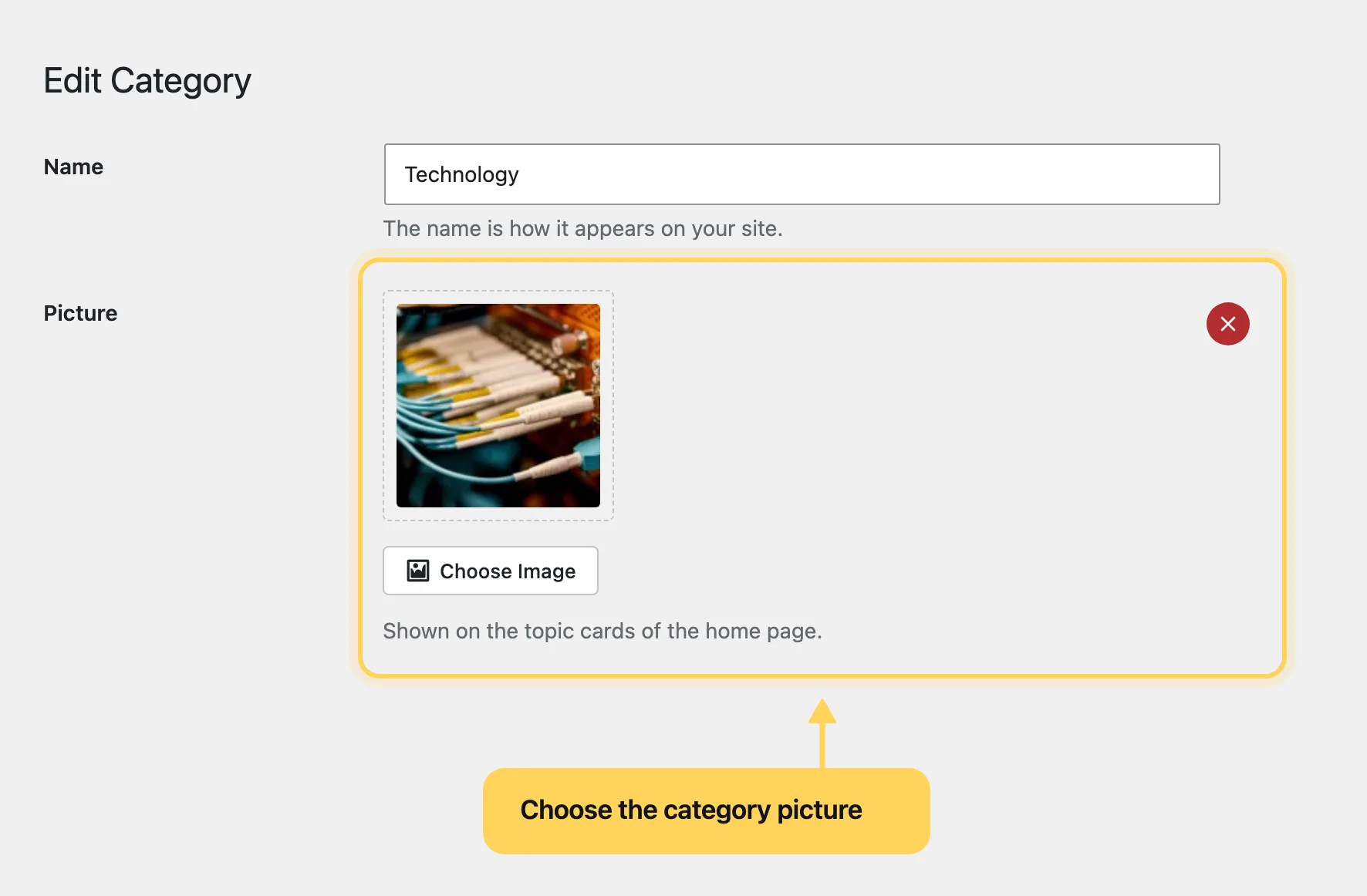
A category without a picture shows no image on its archive, and its topic card shows the name and count without one.
#Questions
What kind of picture works best?
The topic cards crop the picture to a square and the archive crops it to a wide strip, so keep the subject near the middle.
I picked Load more and the archive still shows numbers.
Check that you saved the template you edited, then clear any page cache. Each template has its own pagination, so a style picked on Archive does not reach Search or Blog Home.
Last updated
Was this article helpful?

On this page
