
LQIP Preview Mode
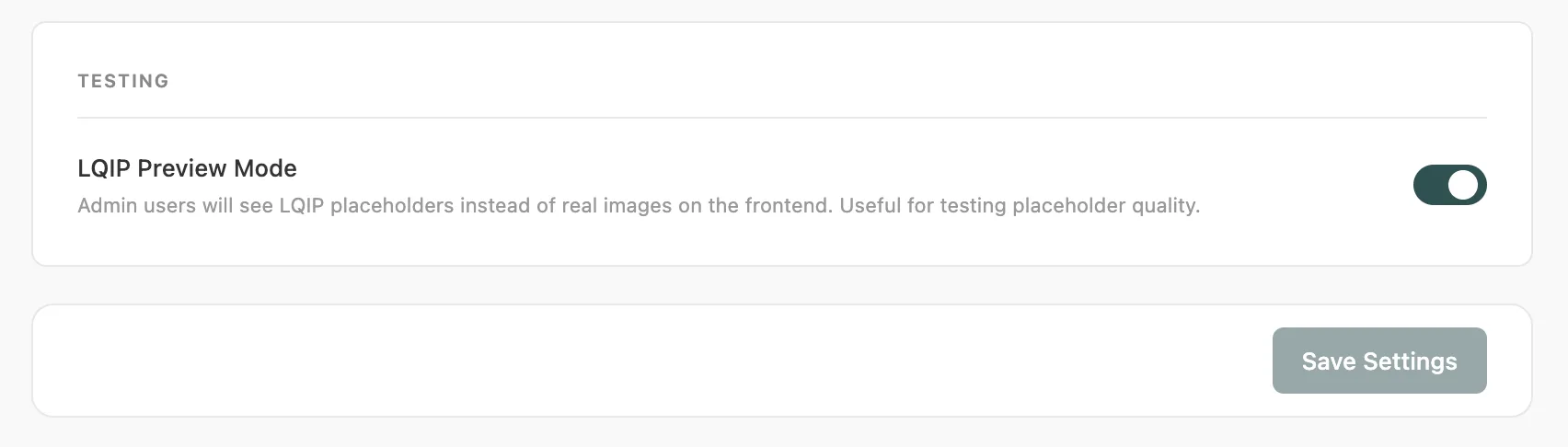
Preview Mode freezes LQIP placeholders on the frontend - images never get replaced by the real photo. It the easiest way to check exactly what your visitors see during the loading moment.
#How to Enable
- Go to LQIP Settings
- Scroll to the Testing card at the bottom
- Enable LQIP Preview Mode
- Save settings
- Visit your site while logged in as an admin
#What You'll See
-
Lazy loading is completely disabled - every image stays as its placeholder permanently
-
A small LQIP Preview badge appears in the bottom-right corner of the page to remind you it's active
-
The active LQIP type determines what each placeholder looks like:
- Thumbnail - blurred, downscaled version of each image
- Palette - solid dominant color, color columns, or gradient
- Pixelart - mosaic pixel grid
- Primitives - geometric SVG shapes over an average-color background
Preview Mode is only visible to logged-in administrators. Regular visitors see the normal site with lazy loading fully active - Preview Mode has no impact on their experience.
Use Preview Mode to fine-tune your LQIP settings visually. Enable it, browse to a page with images, check the placeholder quality, then adjust settings (blur, shape count, palette type) and re-generate.
#Remember to Disable
Turn Preview Mode off when you're done testing. It adds minor overhead for admin users and is only useful during configuration.
Last updated
Was this article helpful?

On this page
