
Lazy Load Elements
This page controls which HTML elements get lazy loaded. Every element type can be toggled independently - enable only what your site actually uses.
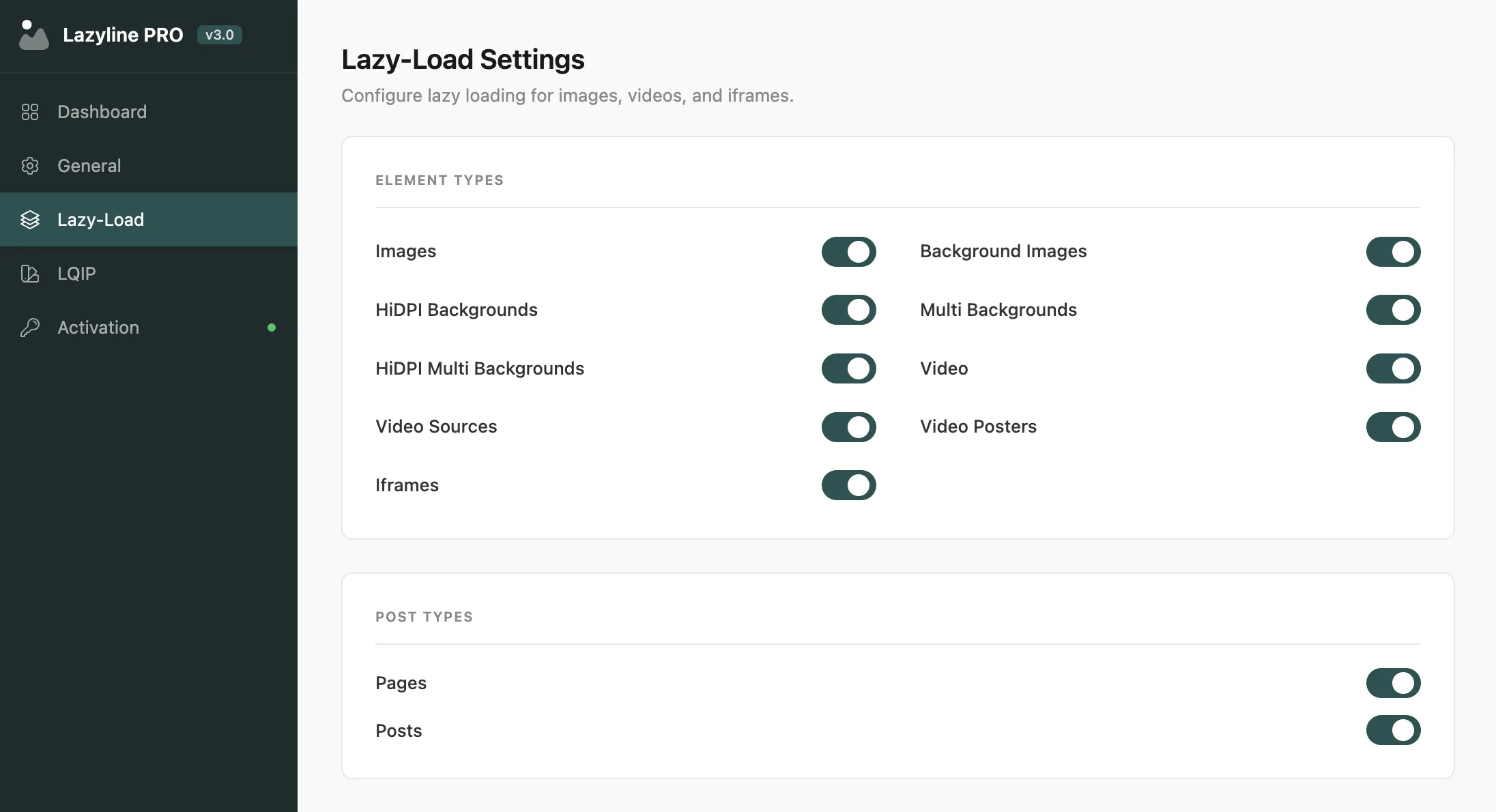
#Element Types
Element | What it targets | Default |
|---|---|---|
Images | Standard | On |
Backgrounds | Elements with CSS | On |
HiDPI Backgrounds | Retina | On |
Multi Backgrounds | Elements with multiple | On |
HiDPI Multi BG | Retina + multiple backgrounds combined | On |
Videos |
| On |
Sources |
| On |
Posters | Video poster attributes | On |
Iframes |
| On |
If your site doesn't use videos or iframes, disabling those types saves a small amount of processing on each page load. Leave Images and Backgrounds on for most sites.
#Post Types
Choose which post types get lazy loading applied. Pages and Posts are enabled by default. Any custom post types registered by your theme or plugins appear here automatically.
Disabling a post type means lazy loading won't run on that content type at all - useful if you have a landing page builder or custom template that handles images differently.
#How It Works
For each enabled element type, Lazyline PRO:
Moves
srctodata-src(andsrcsettodata-srcset)Wraps the element in a
.lazyline-wrapperdivInjects the selected preloader and LQIP placeholder
When the element enters the viewport, the real source loads and the placeholder fades out
Last updated
Was this article helpful?

On this page
