
Navigation: style, search, and social links - Norto
This is a Pro feature. The navigation is set once for the site in Norto ProTheme Options on the Navigation page, and any page can override it.
#Site-wide settings
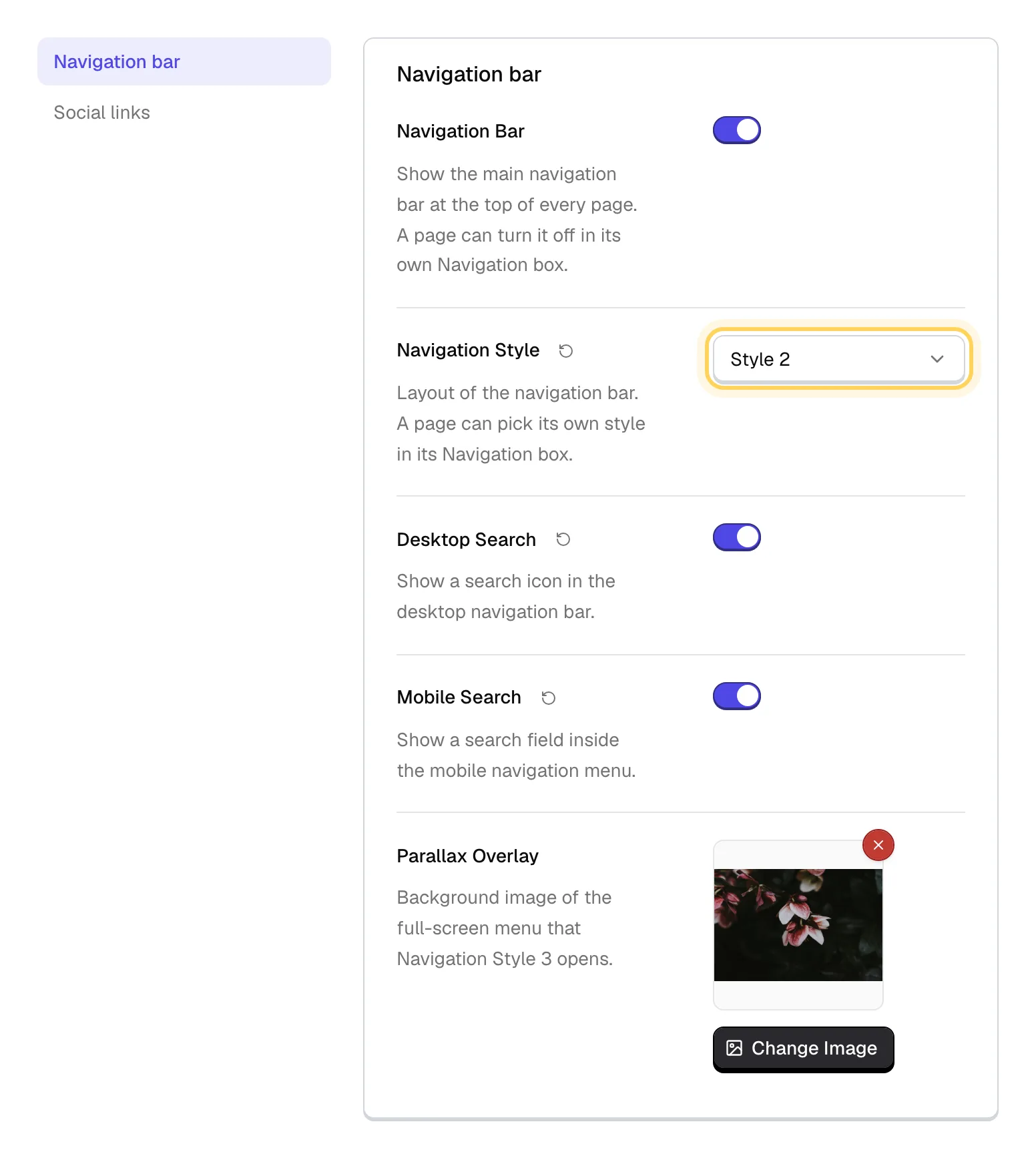
Shows the navigation at the top of every page.
One of four layouts. Shown while Navigation Bar is on.
A search icon in the desktop navigation.
A search field inside the mobile menu.
The background image of the full-screen menu that Style 3 opens. It moves slightly with the pointer. The other styles do not use it.
#Social links
Turn on Social Links, then add one row per network under Social Icons. Each row has an Icon (a Font Awesome brand, such as facebook), an Icon Color, and a Profile URL. Drag rows to change their order.
#Change the navigation on one page
Every page, post, portfolio project, and Elementor header or footer template has a Navigation box on its edit screen.
Off hides the navigation on this page, even when it is on in Theme Options.
Global follows Theme Options; Style 1 to Style 4 override it for this page.
Use this for a landing page that needs a different header, or for a page built entirely in Elementor that carries its own.
The menu itself is a normal WordPress menu; Menus, mega menus, and labels covers it.
Last updated
Was this article helpful?

On this page
