
Add a portfolio project - Norto
This is a Pro feature. Each project is an entry of the Portfolio post type, with its own page and a card in every portfolio grid.
Create the project
Go to PortfolioAdd New Item, enter the title, and build the project page in the editor or with Elementor.
Set the featured image
Add a Featured image. The grid card uses it unless you pick another thumbnail type in the next step.
Choose what the card shows
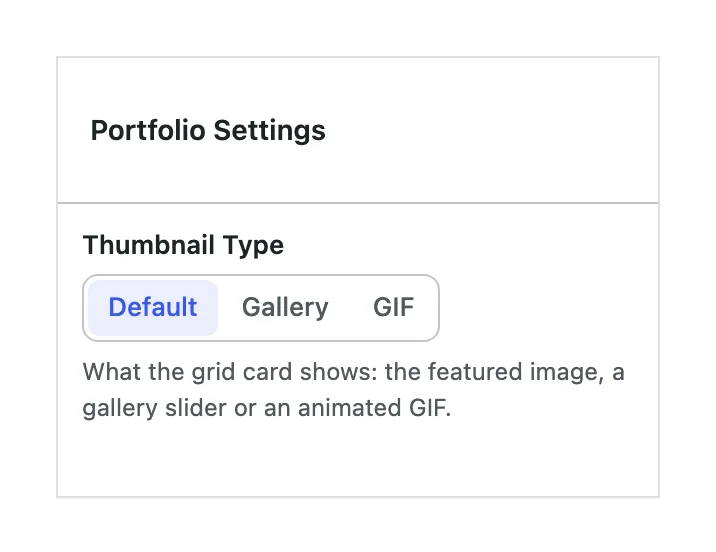
In the Portfolio Settings box in the editor sidebar, set Thumbnail Type: Default shows the featured image, Gallery shows a slider of the images you add in Gallery, and GIF shows the animated file you pick in GIF File.
File it under a category
Tick one or more portfolio Categories. The grid's filter buttons are built from these categories, so a project with no category appears only under All Items.
Publish
Publish the project. It appears in the portfolio archive and in every Portfolio widget, newest first.
The project page also has the Navigation box, described in Navigation: style, search, and social links.
Last updated
Was this article helpful?

On this page
