
Project slider and Project stack settings - Arche
Two blocks show a list of projects. Project slider is the row of covers on the Home page. Project stack shows each project full screen, one after another, as on Work. Select the block and set it up in the block sidebar.
#Query
Both blocks share these settings. They work like the core Query Loop.
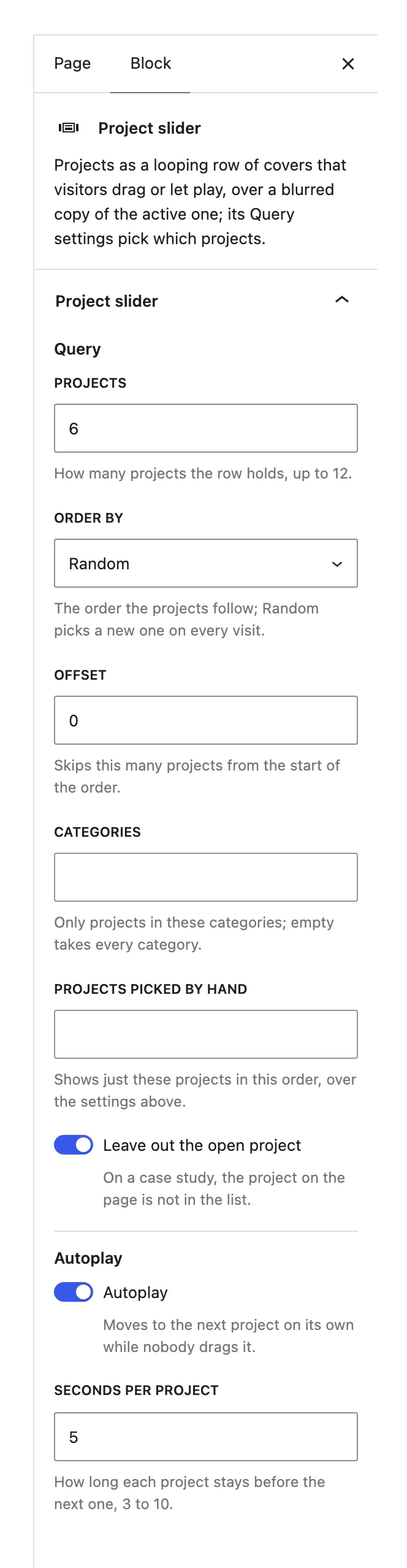
How many projects show. The slider holds up to 12 (default 6). The stack lists up to 50 (default 10).
Random, Newest to oldest, Oldest to newest, A to Z, Z to A or Page order. Random picks a new order on every visit. The slider defaults to Random, the stack to Newest to oldest.
Skips this many projects from the start of the order.
Only projects in these categories. Empty takes every category.
Shows just these projects, in this order. It overrides the settings above.
On a case study, the project on the page is not in the list.
#Autoplay
Project slider only.
Moves to the next project on its own while nobody drags it.
How long each project stays before the next one.
#How the slider behaves
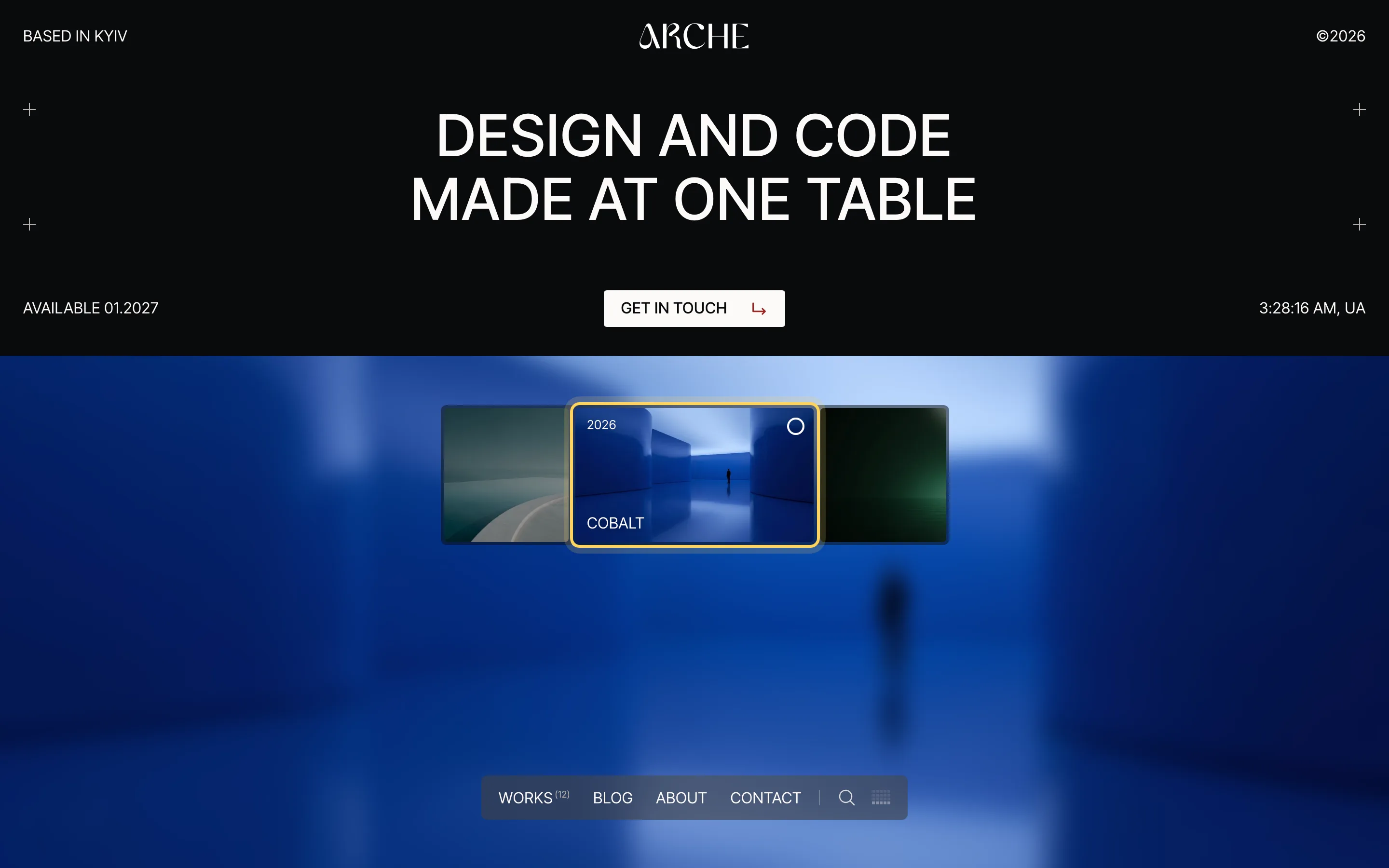
- Drag the row, use the wheel or the arrow keys. The active project sits in the center under the frame.
- Click a side slide to bring it to the center. Click the active one to open its case study.
- The active slide shows the project's year and title, and a badge for a video or a gallery.
- A ring in the frame's corner shows the time left until the next project.
- The background is a blurred copy of the active cover that slowly drifts.
#How the stack behaves on Work
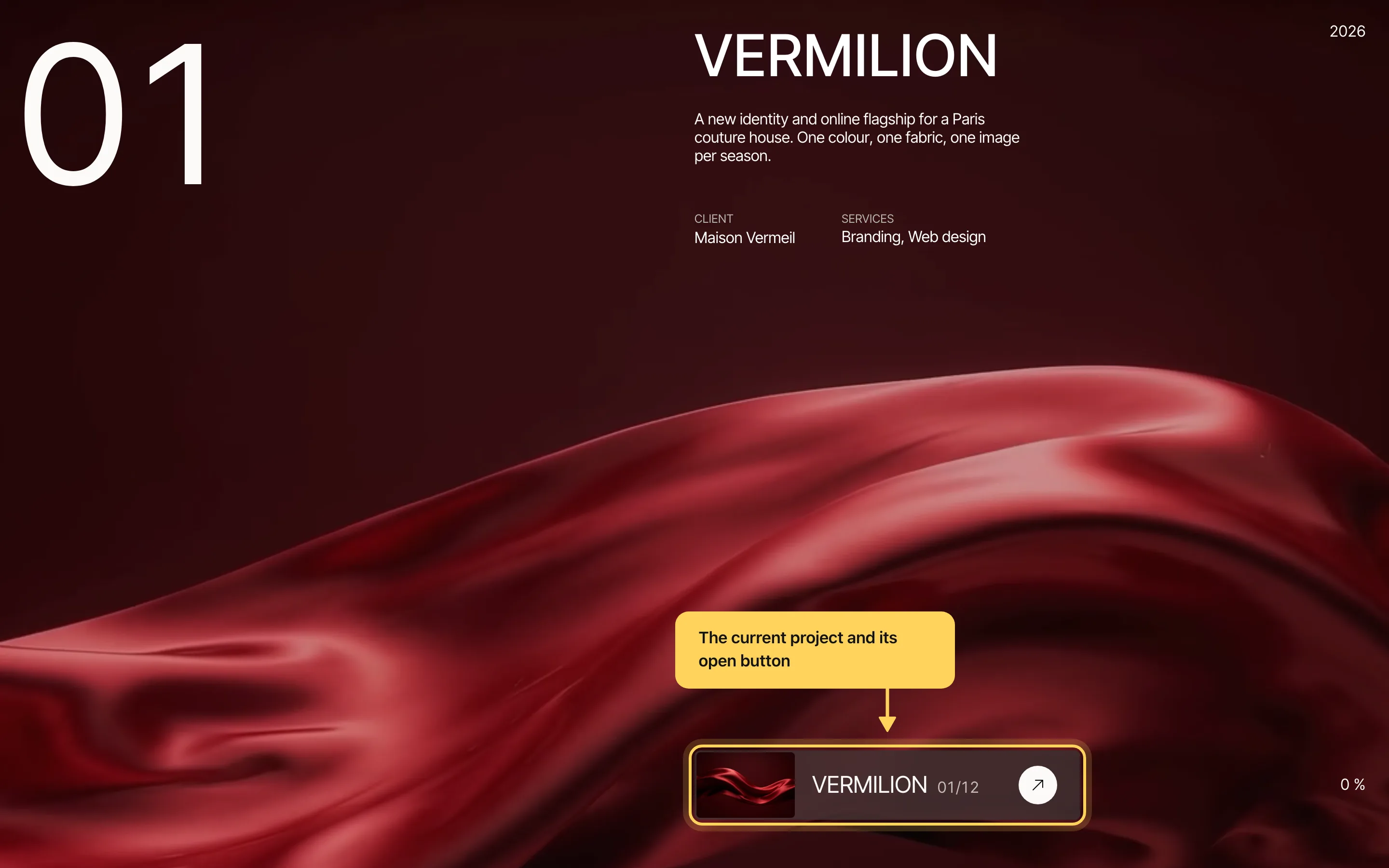
Each project fills the screen with a large counter, its title, summary, client and services. The dock at the bottom shows the current project with its number and a round button that opens it. Point at the dock to bring up round buttons for the previous project, the list of all projects and the next one. A percentage in the corner shows how far down the list you are.
In the list, one preview travels beside the row you point at and crossfades from project to project, with the counters to the right of the names.
Last updated
Was this article helpful?

On this page
