
Add a project - Arche
Each project gets a case study page and a place on Work, on the Home slider and in its categories.
Add the project
Go to ProjectsAdd New Project. Type the title and write the story in the editor.
Add the cover and the summary
Set the Featured image. It is the project's cover everywhere. Write an Excerpt: it is the summary on Work and the lead on the case study.
Pick categories
Tick one or more Project categories in the sidebar. Each category gets its own page.
Fill in the details
Fill in the Project details box in the sidebar.
Add the media
Open the meta boxes under the editor and fill in the Project media box. Publish.
#Project details
Every field is optional, and an empty field prints nothing.
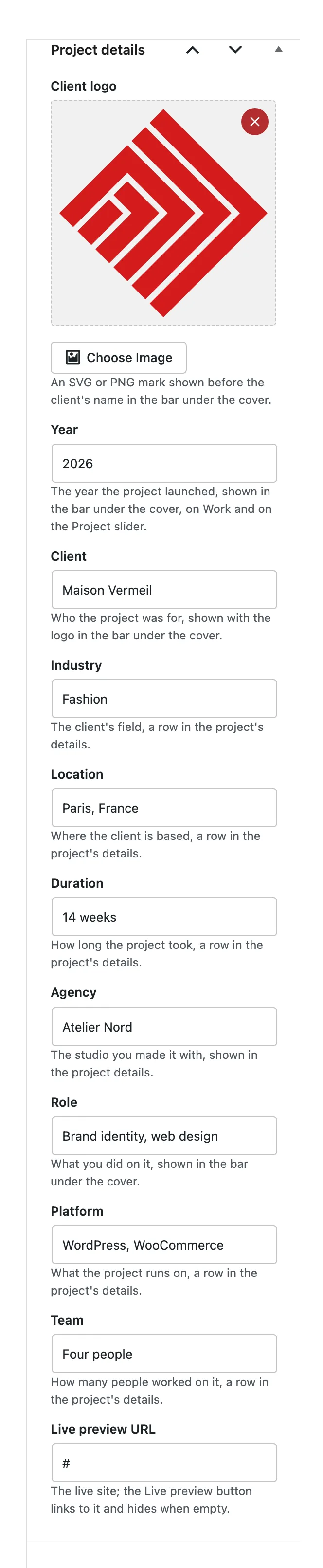
An SVG or PNG mark shown before the client's name in the bar under the cover.
The year the project launched. Shown in the bar under the cover, on Work and on the Project slider.
Who the project was for. Shown with the logo in the bar under the cover and on Work.
Rows in the project's details.
The studio you made it with, shown in the project details.
What you did on it, shown in the bar under the cover.
The live site. The Live preview button links to it and hides when empty.
The categories show as Services, in the project details and on Work beside the client.
#Project media
Pick a Media type: a gallery of images under the story, or a video in the case study cover.
#Gallery
The images, in the order they show.
One under another, Collage, Carousel or Lightbox. Lightbox shows the first image and opens the rest full screen.
Carousel only. Moves to the next image every five seconds, pausing under the pointer.
Carousel only. After the last image the carousel goes back to the first.
#Video
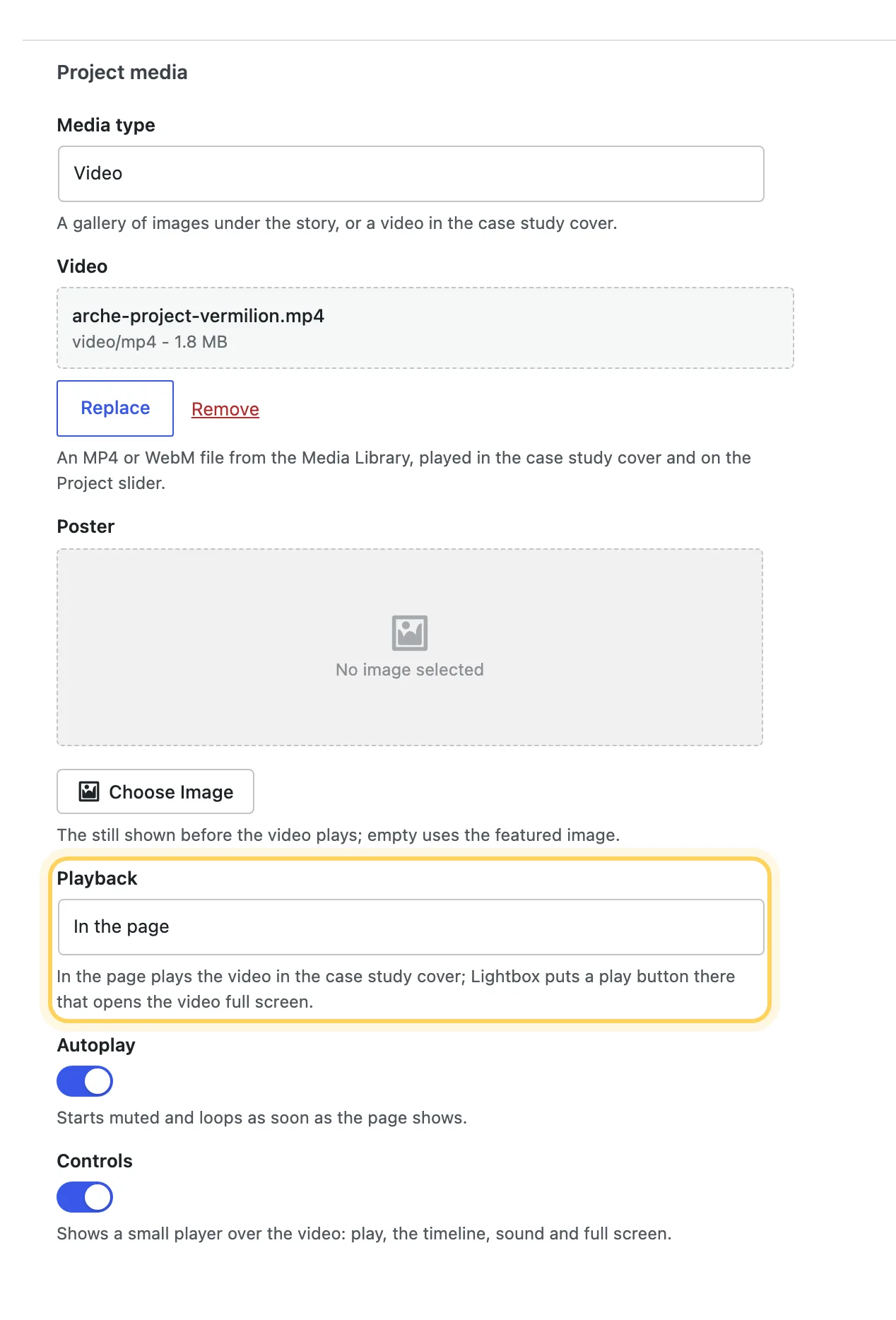
An MP4 or WebM file from the Media Library. It plays in the case study cover and on the Project slider.
The still shown before the video plays, in the cover and in the lightbox. Empty uses the featured image.
In the page plays the video in the case study cover. Lightbox puts a play button in the middle of the cover that opens the video full screen.
In the page only. Starts muted and loops as soon as the page shows.
In the page only. Shows a small player over the video: play, the timeline, sound and full screen. The lightbox always has this player.
If you take the cover out of the Case study template, the video plays in the media block under the story instead.
#On the Home slider
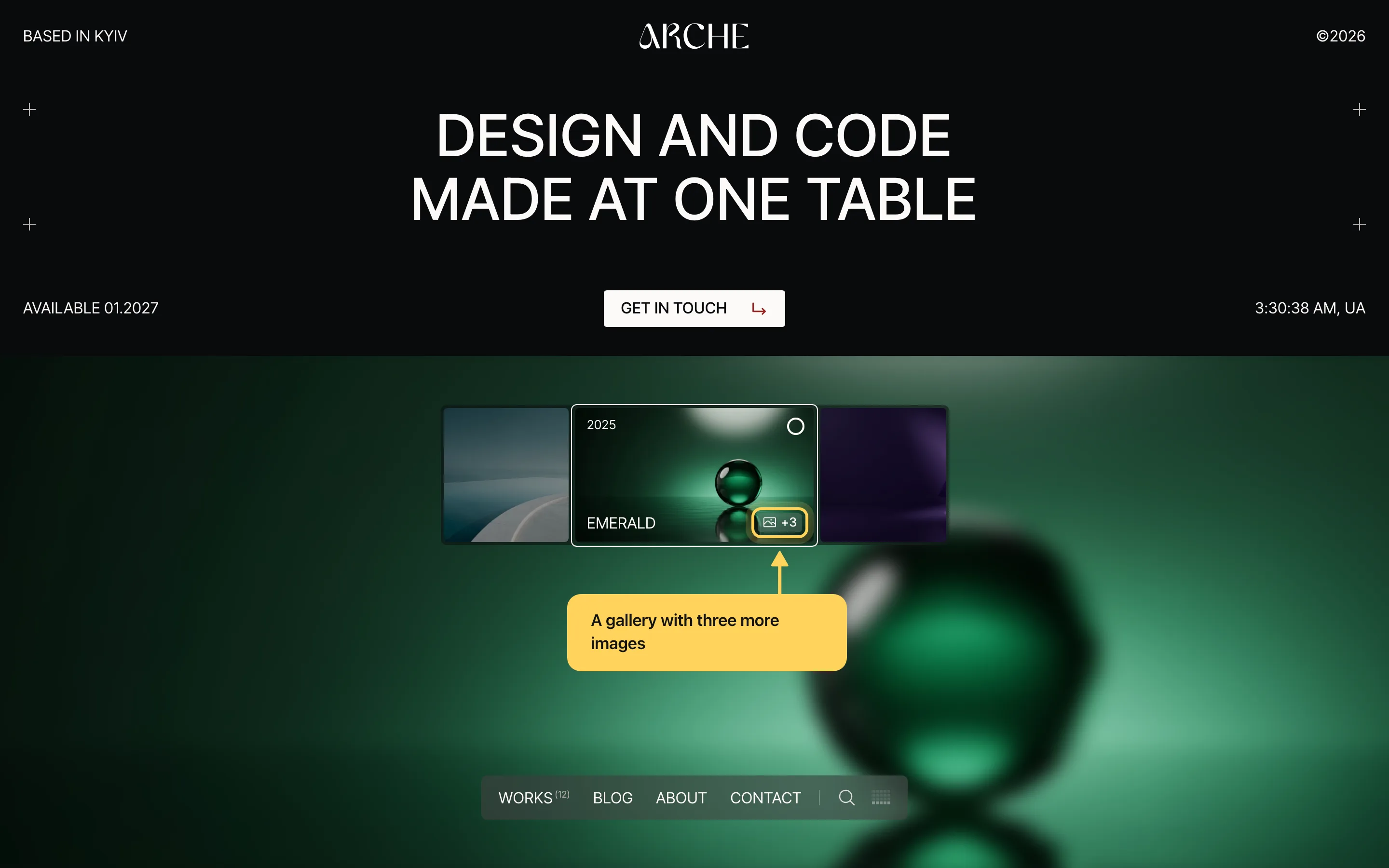
A project's slide shows its year (or its date when Year is empty) and its title. A badge in the corner tells the media type: a play sign for a video, or a picture sign with +N for a gallery. A project with only a cover has no badge. A video project plays muted in its slide while it is active.
#On Work
Each project fills the screen with its number, title, year and summary. Under the summary sit Client and Services, each label over its value.
#The case study page
The page opens on the cover with the title. The bar under it shows the client with the logo, the role and the year, and it stays under the top of the screen while you scroll. On the left the details sit in pairs with the Live preview button, and they stay in place while the story scrolls on the right. The media follows, then the next project with its cover under the title.
Last updated
Was this article helpful?

On this page
