
Add background music - Arche
Arche Pro can loop one track behind the whole site. Visitors play and pause it with the sound bars in the dock.
Upload the track
Upload an MP3, OGG or M4A file in MediaAdd Media File.
Turn on background audio
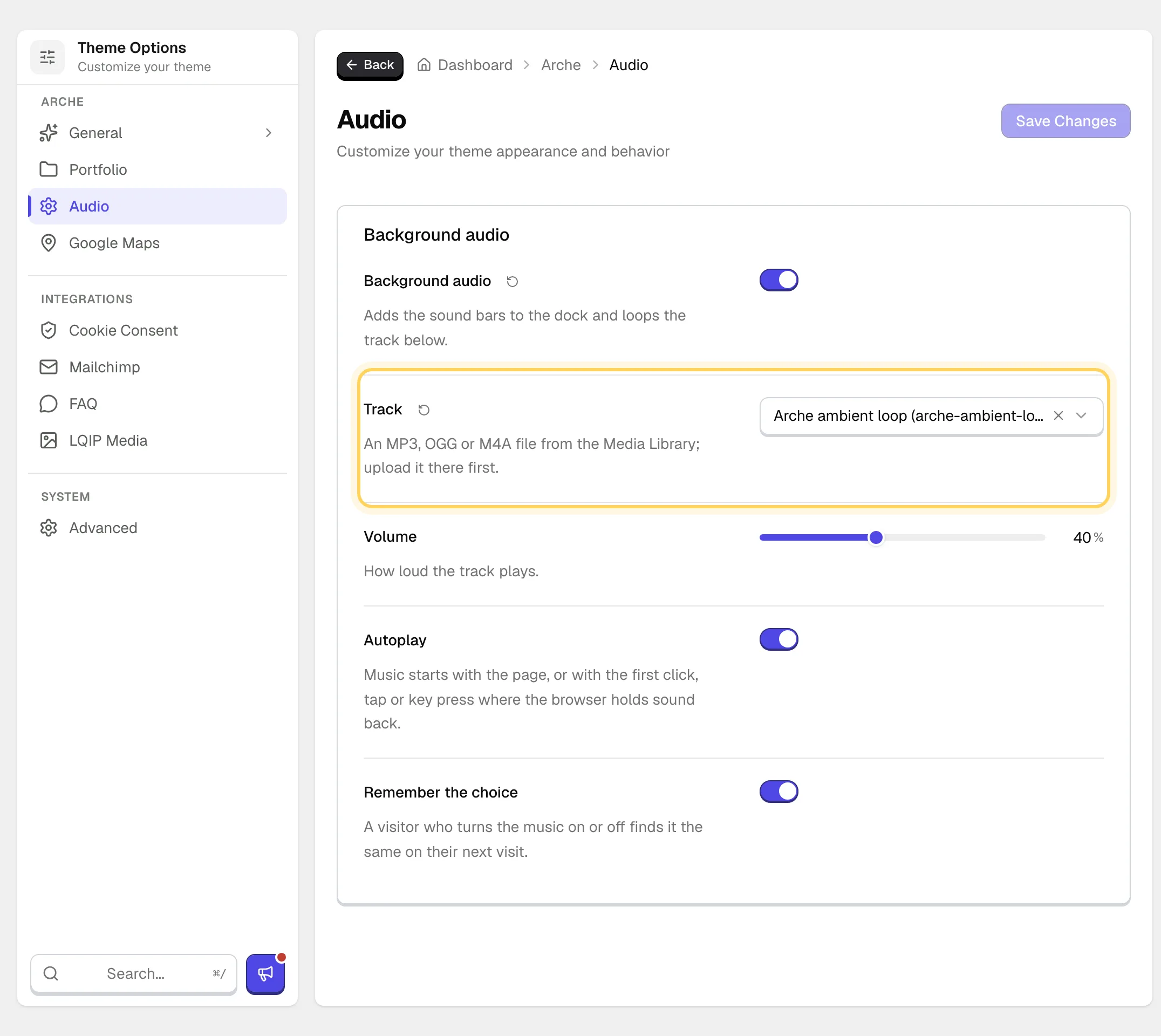
Go to Arche ProTheme OptionsArcheAudio and turn on Background audio.
Pick the track
Choose the file in Track, set Volume and save.
The sound bars appear in the dock after the search button.
#Settings
Adds the sound bars to the dock and loops the track.
An audio file from the Media Library.
How loud the track plays.
Music starts with the page. Where the browser holds sound back, it starts with the first click, tap or key press.
A visitor who turns the music on or off finds it the same on the next visit. The choice is kept in the visitor's browser.
#Good to know
- With Barba as the page transition provider the music keeps playing from page to page. With View Transitions each page loads in full and the track picks up at the same second.
- While Remember the choice is on, Autoplay never overrules a visitor who turned the music off.
- Phones get no sound bars and no music. Below 600px the dock holds only the menu button.
Last updated
Was this article helpful?

On this page
