
Add a Google map - Arche
The Map block shows one place on a Google map with a glass marker. The Contact pattern already has one beside the studio picture.
#Add the API key
The map needs your own Google Maps key.
Create the key
In Google Cloud, create an API key with the Maps JavaScript API turned on. Restrict it to your domain.
Save it in Theme Options
Go to Arche ProTheme OptionsArcheGoogle Maps, paste the key in API key and save.
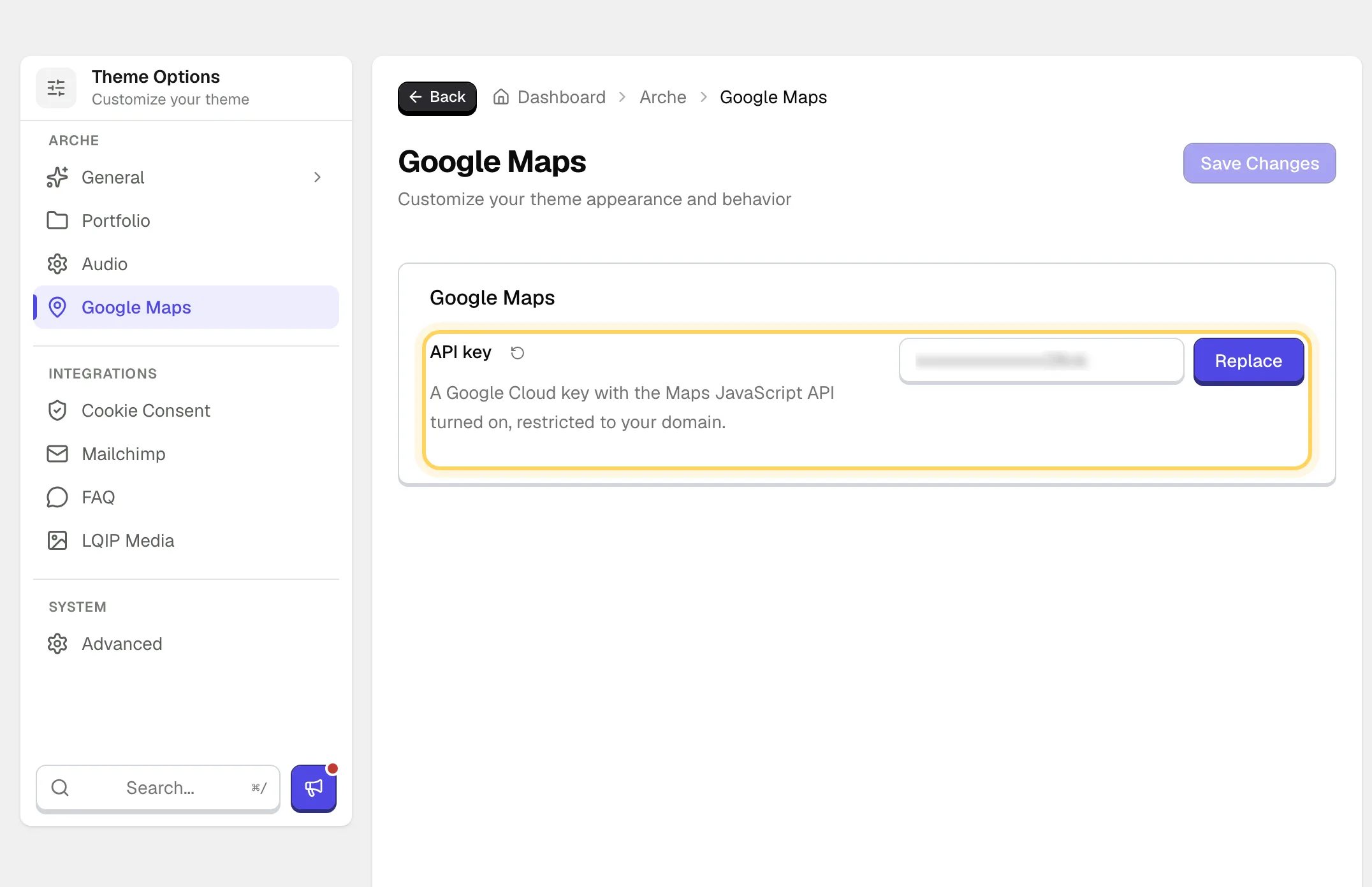
The key is stored encrypted, so the field shows it masked with a Replace button. Without a key the map shows nothing on the site, and the editor shows a hint.
#Place the map
Insert the Map block and set it up in the block sidebar.
Right-click the place in Google Maps and copy the first number.
The second number from the same right-click.
From the whole world at 1 to a single street at 20.
How tall the map is, as a share of the screen height.
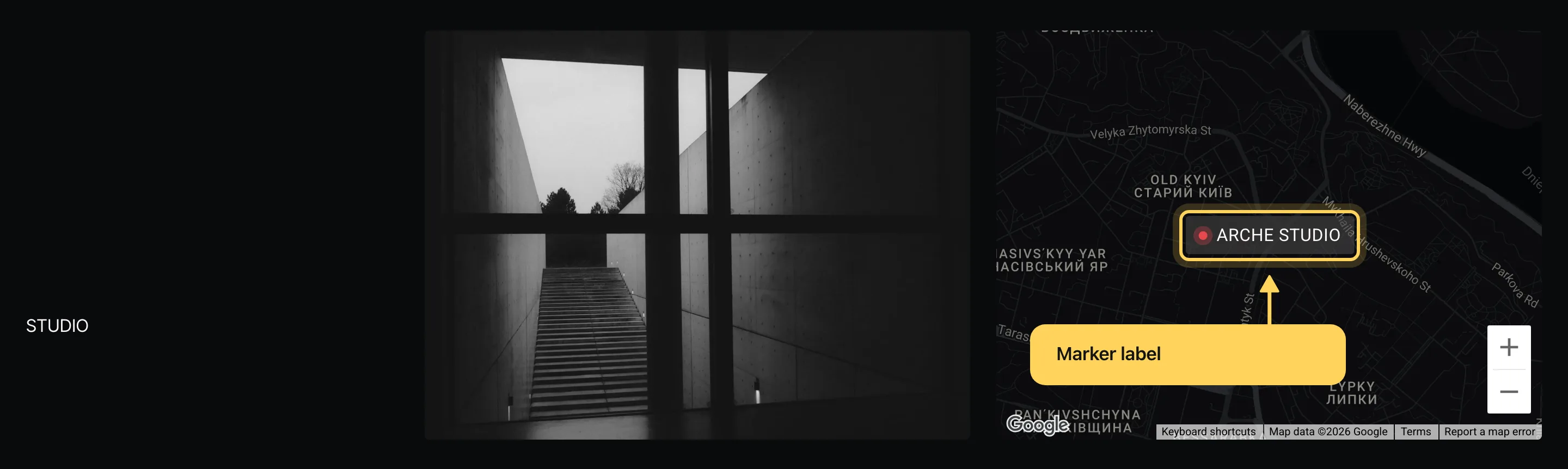
A glass pin on the place.
A few words beside the pin, such as the studio's name. Shown while Marker is on.
Paste a style as JSON from the Google Maps styling wizard or Snazzy Maps. Empty keeps the dark Arche style.
#If the map does not show
The map loads when it comes close to the screen. If Google refuses the key, the block shows a quiet placeholder instead of the gray Google error. Check that the key allows your domain and has the Maps JavaScript API turned on.
Last updated
Was this article helpful?

On this page
