
Single posts - Auno
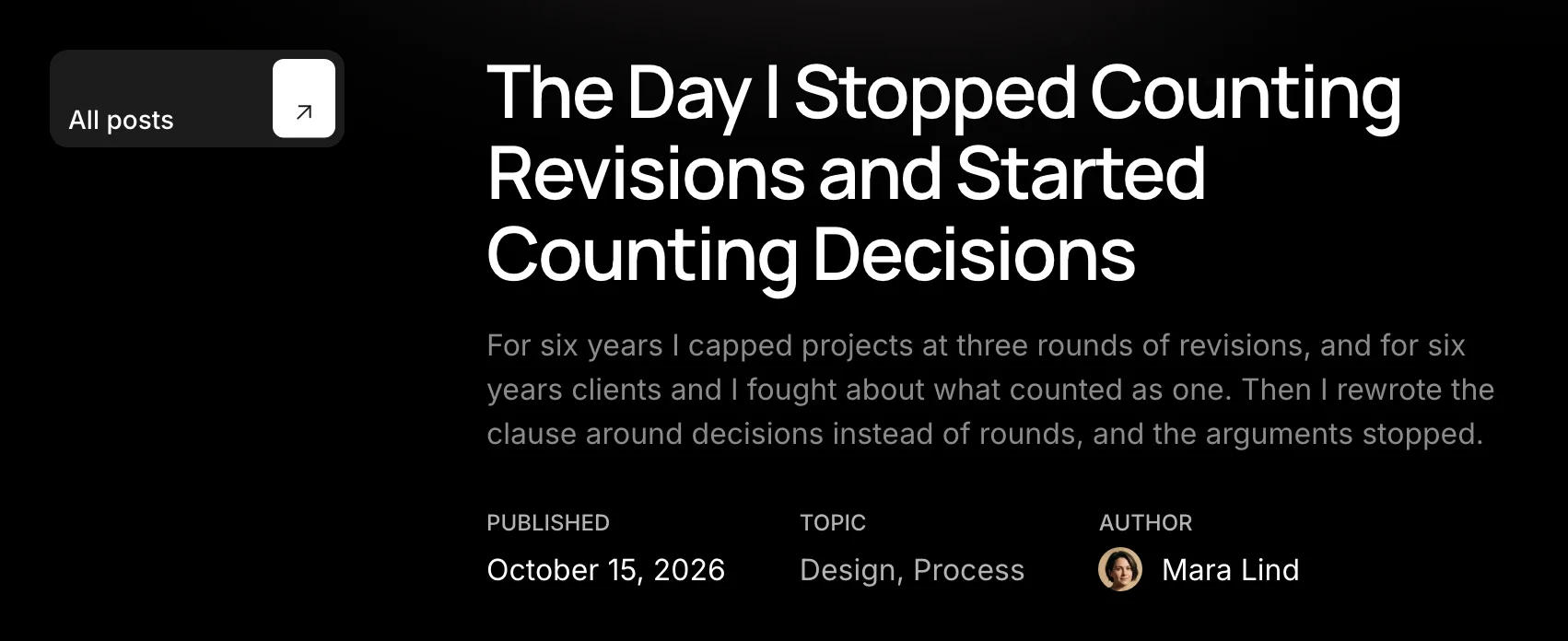
A post page puts the reading first: one narrow column with the title, a short lead and the meta above the cover, then the text. It is drawn by the Single Posts template at AppearanceEditorTemplates.
#From top to bottom
- All posts
A small button back to the blog. On wide screens it sits to the left of the title, on phones above it.
- Title and lead
The post title and its excerpt. Write the excerpt in the post's settings sidebar; without one, WordPress takes the first words of the text.
- Meta
Three labelled columns: Published, Topic with the post's categories, and Author with the author's name and photo.
- Cover
The featured image, with a large corner radius.
- Summarize with AI (Pro)
Buttons under the cover that open the post in an AI assistant with a summary request, with no API key.
- Text
The content, with its own type sizes: H2 is 24px and H3 is 18px. Images set to open on click open in the theme's viewer, and the images of a gallery form one sequence there. The viewer shows each image's caption under it: the block's own caption, or the caption written for the image in the media library when the block has none.
- Tags
A Tags: label followed by the post's tags as small pills that wrap onto more lines when there are many.
- Previous and next
On wide screens, arrows fixed at the sides of the page lead to the neighbouring posts; with Auno Pro they show the post's thumbnail and loop from the last post back to the first. On phones, previous and next links sit under the post.
- Keep reading
Two more posts as cards with their covers, and a View all link to the blog. Posts that share a category with the one on screen come first; when there are fewer than two, the latest posts fill the row.
- Comments
The WordPress comments, styled to match.
#The author's photo
The Author column shows the profile picture WordPress has for the author, from Gravatar. With Auno Pro, set your own instead: go to UsersProfile, find Profile photo and choose an image for Avatar. A square photo works best; it shows wherever your avatar appears.
#Summarize with AI (Pro)
Auno Pro places the block after the cover in the Single Posts template, and you can also insert it into any post. Select it to change its settings in the sidebar:
The text before the buttons. Empty shows Summarize with.
The request sent to the assistant. {url} and {title} become the post's address and title. Empty uses a request to summarize the article at {url}.
The assistants that get a button. ChatGPT, Claude, Gemini, Perplexity and Grok are on out of the box; Copilot is available too.
Each button opens the assistant in a new tab with the request filled in. Gemini and Copilot have no official way to fill in a request, so they can open with an empty chat.
#Questions
How do I remove a part, such as the tags, Keep reading or the comments?
Open the Single Posts template at AppearanceEditorTemplates, select the part and delete it, then save. The change applies to every post. Keep reading is also a pattern, Related posts, so you can insert it again from the block inserter.
The author shows a grey silhouette
The author has no Gravatar and no Auno Pro photo. Add one in the profile as described above.
The viewer shows no caption under an image
The image has none yet. Add one to the block, or write it once for the image in MediaLibrary and every block using that image shows it in the viewer.
Last updated
Was this article helpful?
On this page
