
Patterns and templates - Auno
Auno's pages are built from patterns placed in templates. Patterns are the sections you insert and edit; templates decide which sections a kind of page gets; template parts are the header, footer and mobile menu every template shares. All three are edited in the Site Editor, as described in Full Site Editing.
#Patterns you can insert
Open the block inserter, switch to Patterns and pick a category. The patterns land as ordinary blocks you can change freely, see adding a ready-made section.
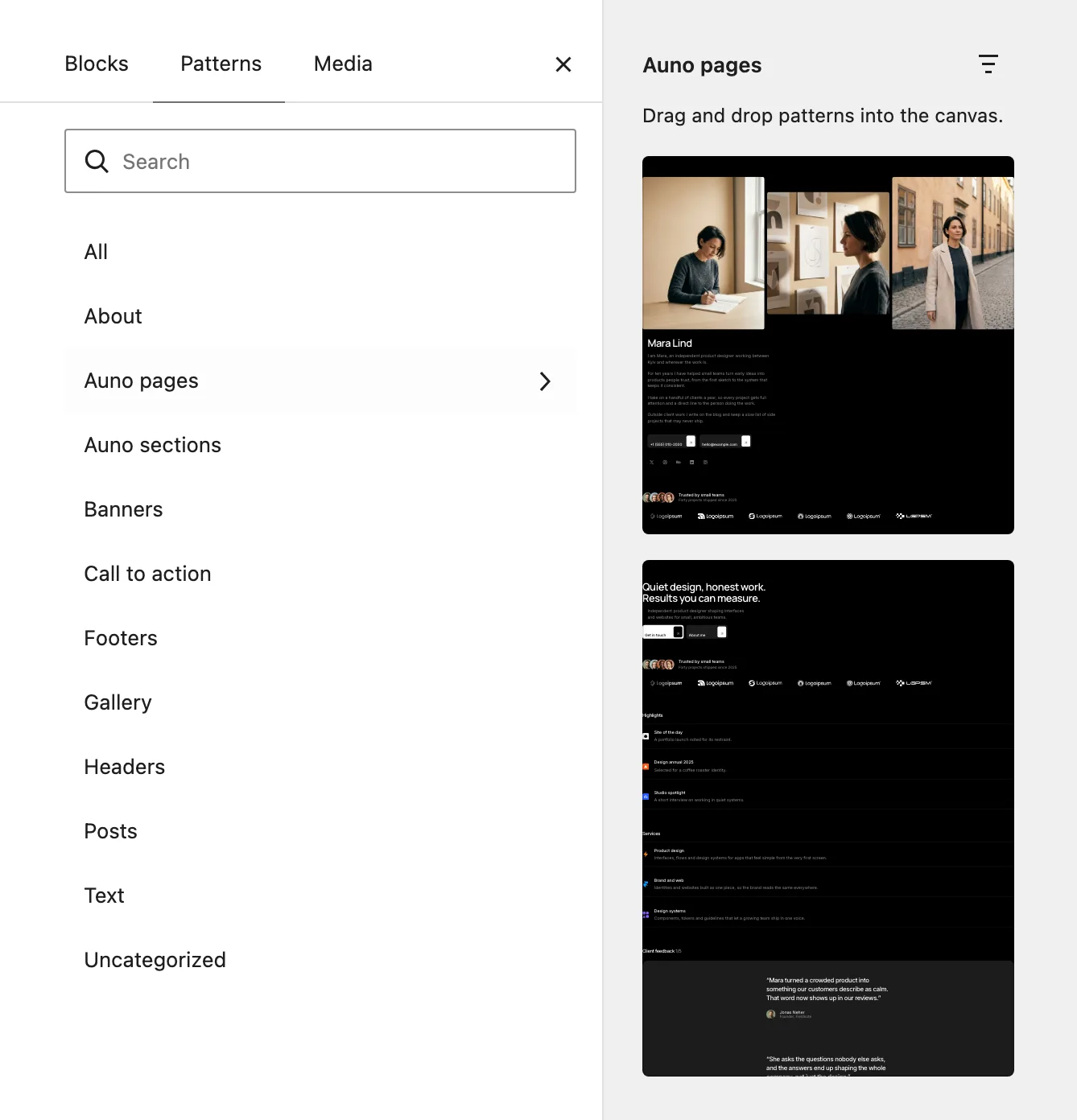
Auno pages holds whole pages:
- Home
The full home page: hero, clients, highlights, services, client feedback, process, stack and FAQ.
- Home (with portfolio) (Pro)
The same page with Selected work, the six latest projects.
- About
A collage of three photos, a name, a text, contacts and social links, followed by the clients.
- Privacy policy and Terms and conditions
Legal pages in plain words, each ending with a contact button. They are a starting point: check them against what your site actually does.
Auno sections holds the home page sections one by one: Hero, Clients, Highlights, Services, Client feedback, Process, Stack and FAQ. Auno Pro adds Selected work, Newsletter, which places itself in the footer when Mailchimp is active, and FAQ (questions from the FAQ integration), which lists the questions you write as FAQ entries.
Project layouts (Pro) holds four starting points for a project's content: Project: story, Project: image stack, Project: grid and Project: split. See add a project.
#Templates
The templates are at AppearanceEditorTemplates.
| Template | What it shows |
|---|---|
| Blog Home | The posts page: the title with its post count, an intro, Topics and all posts with pagination |
| Index | The fallback when no other template fits |
| All Archives | A category, tag or date archive with its count and post rows |
| Search Results | The search term and matching posts |
| Single Posts | A post: back to the blog, title, excerpt, meta, cover, text, tags, the neighbouring posts and comments |
| Pages | A page with its title and cover |
| Page without title | An empty canvas for pages built from patterns, such as Home and About |
| Page: 404 | The page not found message |
| Single project (Pro) | A project: title, details, cover and media, content, side arrows and Keep exploring |
| Works (Pro) | All projects in the works grid |
To give a page the empty canvas, open the page, find Template in its settings sidebar and choose Page without title.
#Template parts
Header, Footer and Mobile menu are at AppearanceEditorPatterns under All template parts. A change to one shows on every page, see editing the header or footer.
#Patterns that build the templates
Some patterns are hidden from the inserter because the templates use them: Blog intro, Topics, All posts, Post rows, Archive header, Search header, Back to blog, Post meta, Post tags, Post side arrows, Post navigation, Comments and Page not found. To change one, edit the template that holds it.
#Questions
I edited a template and want the theme's version back
Open the template's actions in the Templates list and choose Reset. See a theme update did not change a template I edited.
Can I add my own pattern?
Yes. Build the section on a page, select its blocks and create a pattern from them, or click Add Pattern at AppearanceEditorPatterns.
Last updated
Was this article helpful?

On this page
