
Build the home and about pages - Auno
The home and about pages are ordinary pages built from a pattern on the Page without title template, so they have no title or cover of their own. If you imported the demo, both already exist; this is how to build them from scratch.
#Build the home page
Create the page
Go to PagesAdd Page and give it a title such as Home. The title does not show on the page.
Choose the empty canvas
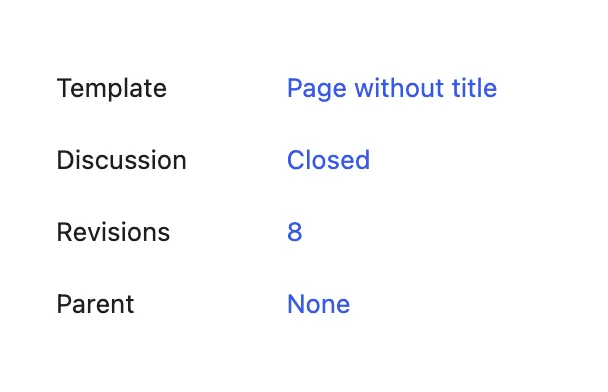
In the page's settings sidebar, open Template and choose Page without title. The page loses its title and cover, leaving room for the pattern.
Insert the Home pattern
Click Block Inserter, open Patterns, choose Auno pages and click Home. With Auno Pro, Home (with portfolio) adds the six latest projects. The sections appear on the page.
Publish and make it the homepage
Click Publish. Then go to SettingsReading, set Your homepage displays to A static page and pick the page as Homepage. While you are there, pick the page that will hold the blog as Posts page.
#Replace the demo content
Each section is ordinary blocks, so click into it and type. The parts people ask about:
- Hero
The headline, the line under it and two buttons. The glow behind it is set at AppearanceCustomizeAuno ThemeGlow.
- Clients
Overlapping avatars and a strip of logos that moves on its own. Replace each image in place; give logos the Logo style so they turn white on the dark scheme and black on the light one.
- Highlights and Services
Rows with an icon, a title and a line of text. A highlight row is a link as a whole.
- Client feedback
A slider of quotes with the author's photo, name and role. Duplicate a slide to add one.
- Process
Steps on the left and the active step's photo beside them. Each step carries its own photo; duplicate a step to add one.
- Stack
The tools you use, as a two-column list of links.
- FAQ
Questions as boxes that open. With Auno Pro, the FAQ (questions from the FAQ integration) pattern lists questions you manage as entries instead, see the FAQ integration.
#Build the about page
Create a page the same way, choose Page without title, and insert About from Auno pages. Replace the three photos of the collage, the name, the text and the contacts. The social links are a Social Icons block with the Icons only style; add your profiles in its settings.
#Questions
The homepage still shows my latest posts
SettingsReading is still set to show the latest posts. Choose A static page and pick your page as Homepage.
Can I use only some of the sections?
Yes. Delete the sections you do not need, or start from an empty page and insert sections one by one from Auno sections.
My page shows a title and a cover above the sections
The page uses the default template. Switch Template to Page without title in its settings sidebar.
Last updated
Was this article helpful?

On this page
