
Add a project - Auno
A project is one piece of work in your portfolio: a page at /work/your-project/ with its title, details, cover and story, and a card in the Works grid. Projects come with Auno Pro and are managed at PortfolioAll Projects.
#Create the project
Start a new project
Go to PortfolioAdd New Project. Type the title: it becomes the page heading and the card's name.
Write the lead
Open the project's settings sidebar and write the Excerpt. It shows under the title on the project page.
Set the cover
Set the Featured image. It is the large cover on the project page and the card in every grid. A landscape image cropped to 5:4 fits both.
Fill in the details
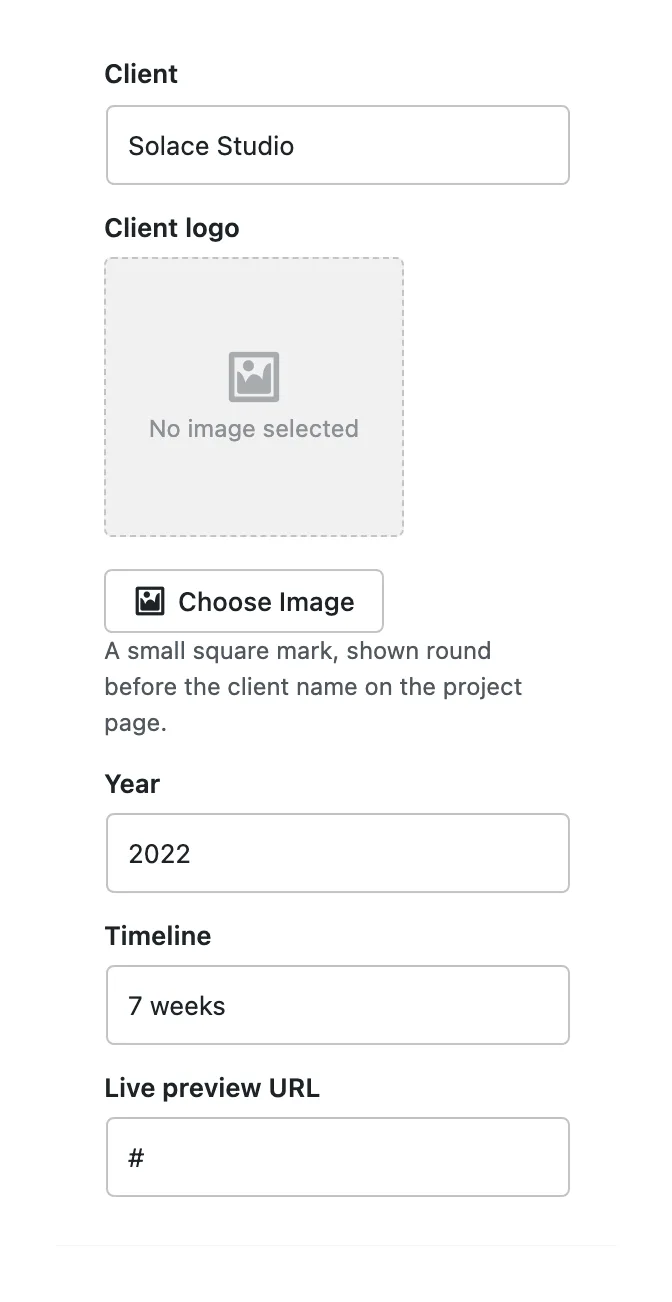
In the Project box at the bottom of the sidebar, fill in Client, Year, Timeline (such as 6 weeks) and Live preview URL. Add a Client logo too: a small square mark shown round before the client's name. Client, Year and Timeline appear as three cards under the title, and the live link becomes the Live preview button.
Start the content from a layout
Click Block Inserter, open Patterns and choose Project layouts: Project: story, Project: image stack, Project: grid or Project: split. Replace the text and images with your own.
Publish
Click Publish. The project appears first in the Works grid and in Selected work on the home page.
To show a gallery or a video in place of the cover, use the Project media box under the editor, see project media: galleries and video.
#Where the project shows up
- The project page
The title, the lead, the Live preview button, the detail cards, the cover or its media, and your content. At the sides, arrows lead to the previous and the next project with a thumbnail, looping at the ends. Under it, Keep exploring suggests two more projects and links to all of them.
- The Works archive
/work/, six projects a page, see the Works archive and Selected work.- Selected work
The six latest projects, in the Home (with portfolio) pattern or the Selected work pattern on any page.
#Questions
How do I change the order of the projects?
Projects are ordered by their publish date, newest first, and the side arrows follow the same order. Change a project's date in its settings sidebar to move it.
A detail card is empty on the project page
Each card shows its field. Fill in Client, Year or Timeline in the Project box, then update the project.
Can I hide the Live preview button?
Leave Live preview URL empty, or remove the button from the Single project template at AppearanceEditorTemplates.
Last updated
Was this article helpful?

On this page
