
Dark and light color schemes - Auno
Auno has a dark and a light color scheme, and visitors can switch between them from the header. The choice is remembered on their next visit. Both schemes are in the theme itself, with no plugin.
#Set the scheme and the switch
Go to AppearanceCustomizeAuno ThemeColor scheme.
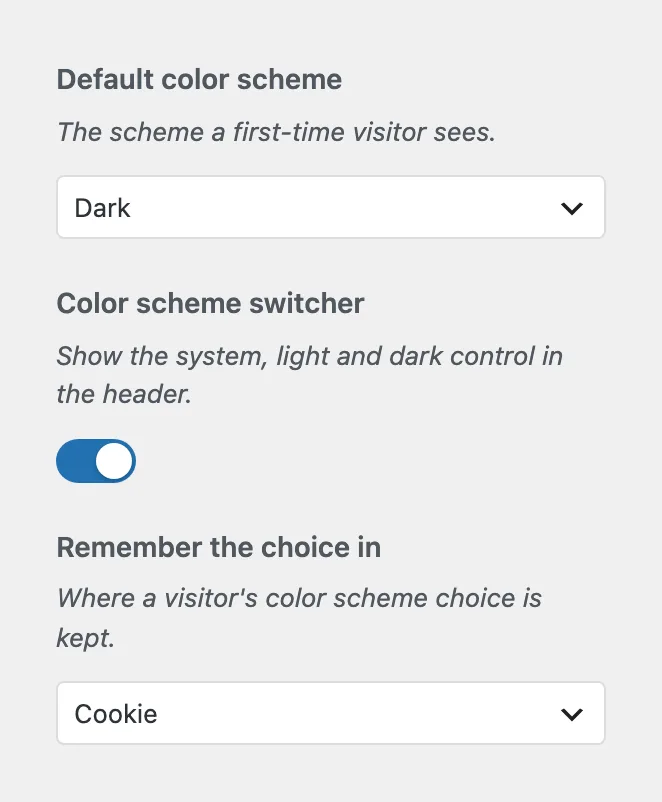
What a first-time visitor sees: Dark, Light or System, which follows the visitor's device.
Shows the system, light and dark control at the top right of the page. Off, everyone gets the default scheme. The setting below hides while this one is off.
Where a visitor's choice is kept. A cookie reaches the server, so the right scheme is drawn before the page appears. Local storage stays in the browser only.
On phones the switch is a single sun or moon icon that flips between light and dark.
#Change the light colors
Every color the site uses has a light twin. Change the light scheme at AppearanceEditorStylesColors by editing the colors whose names start with Light: Light base, Light surface, Light contrast, Light muted and Light border. The Accent color is shared by both schemes. The full palette with its defaults is in colors, fonts and layout.
Open the palette
Go to AppearanceEditorStylesColors and open the palette.
Edit the light colors
Click Light base and pick the new value, then the other Light colors you want to change. The preview keeps showing the dark scheme, because that is what the Site Editor draws.
Save and check the light scheme
Click Save. Open the site, switch to light in the header, and the new colors show.
The Sand style variation sets both schemes at once, so applying it changes the light colors too.
#Your own content in both schemes
The theme repaints its own blocks. A color you set by hand on a block, or an image with its own dark or light background, stays the same in both schemes, so pick palette colors for anything that should follow the switch.
#Questions
Can I make the whole site light only?
Set Default color scheme to Light and turn off Color scheme switcher. Every visitor then gets the light site with nothing to switch, and a choice stored on an earlier visit is ignored.
Cookie or local storage?
Cookie, unless you have a reason. The server reads it, so the right scheme applies as the page loads. Local storage can show the default scheme for a moment before the stored one takes over.
Some cards stayed dark for a moment after switching to light
The switch repaints everything on the page at once. If a card still lags, clear the page cache and any caching plugin, then reload.
Last updated
Was this article helpful?

On this page
