
Plugins
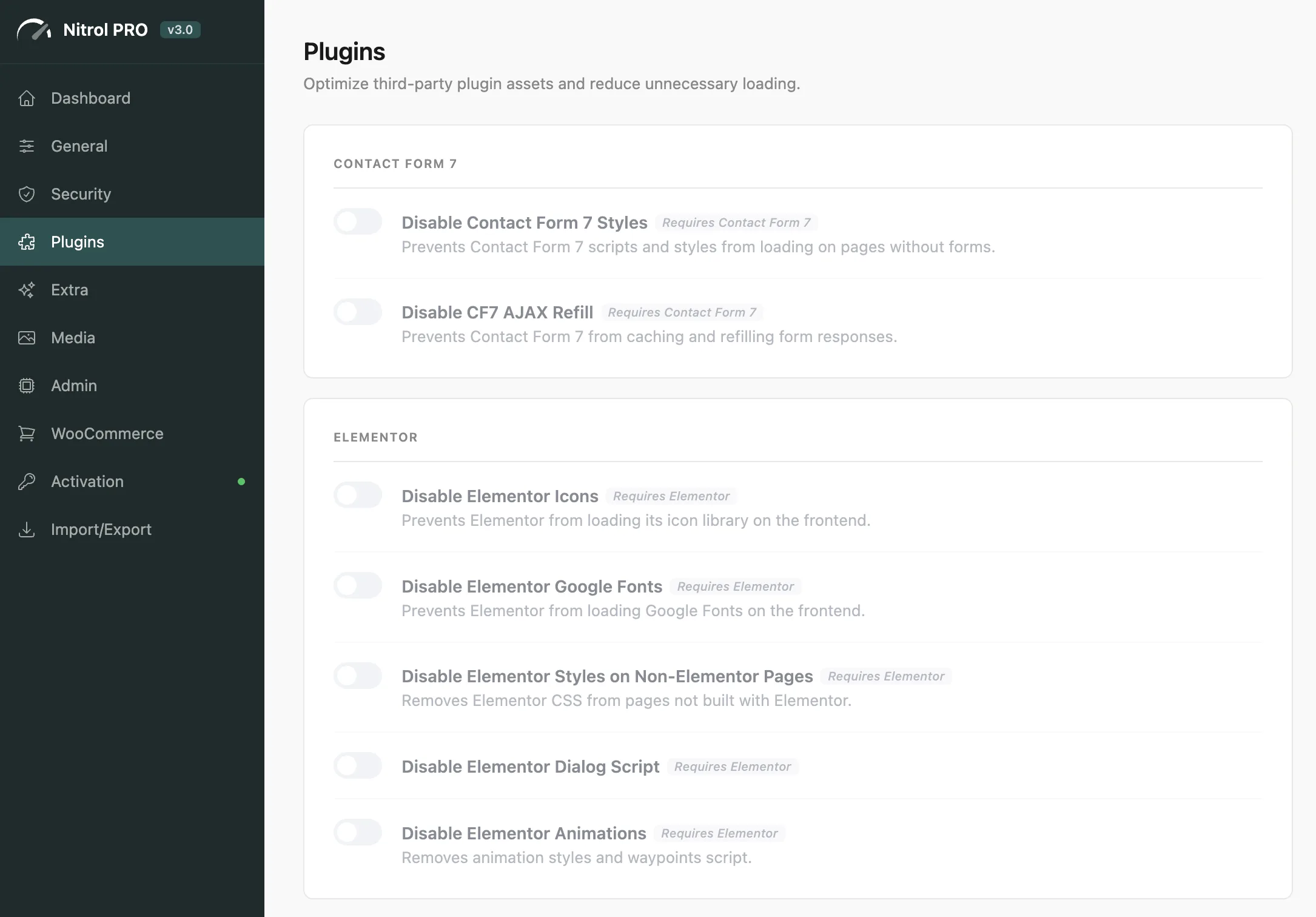
Optimize third-party plugin assets - one of the biggest sources of frontend bloat on most WordPress sites. Nitrol detects which plugins are installed and shows only the settings that apply to your setup. If a plugin isn't active, its card is disabled with a "Requires X" label.
#How It Works
Most WordPress plugins load their CSS and JavaScript on every page of your site, even where they aren't used. A contact form plugin that only appears on your Contact page still loads its scripts on your homepage, product pages, and blog.
Nitrol lets you surgically disable those assets on pages that don't need them - reducing page weight and eliminating unnecessary requests without breaking anything.
Start with Contact Form 7, Elementor, and Yoast SEO if you have those installed - they're the most common sources of unnecessary page-wide asset loading.
#Supported Plugins
Plugin | Available Settings |
|---|---|
Contact Form 7 | Disable styles/scripts on non-form pages, disable AJAX refill, specify page IDs where CF7 should load |
Elementor | Disable icon fonts, Google Fonts, frontend styles on non-Elementor pages, dialog script, animations |
Yoast SEO | Disable schema output, OpenGraph, Twitter cards, breadcrumbs, HTML comments |
Rank Math | Disable schema, OpenGraph, credit notices, sitemap XSL styling |
Jetpack | Disable CSS, related posts, sharing buttons, stats tracking |
Gravity Forms | Disable CSS, conditional script loading |
WPForms | Disable CSS, conditional asset loading |
Fluent Forms | Disable global styles on non-form pages |
WPML | Remove generator tag, disable frontend styles |
Polylang | Disable frontend styles |
bbPress | Disable styles on non-forum pages |
BuddyPress | Disable styles on non-community pages |
TablePress | Conditional style loading - only on pages that contain a table |
The Events Calendar | Disable styles on non-event pages |
Slider Revolution | Disable CSS on pages without sliders |
Divi | Disable animations, Google Fonts |
Beaver Builder | Disable icon fonts on non-builder pages |
ACF / ACF Pro | Disable REST API exposure of custom fields |
Nitrol automatically detects which supported plugins are active. Only those cards are shown - you won't see settings for plugins you don't have installed.
#Testing Your Changes
After disabling plugin assets, check the affected pages in an incognito window:
- Verify the affected plugin feature still works on pages where it should load
- Confirm the pages where it's disabled look and function correctly
- Use browser DevTools (Network tab) to confirm the scripts/styles are no longer loading
Some plugins load assets as dependencies of other scripts. If disabling a plugin CSS breaks an unrelated feature, re-enable that setting and check for asset dependencies.
Last updated
Was this article helpful?

On this page
