
Security
Security hardening settings that protect your site from common attack vectors. Most of these can be enabled safely on any WordPress site.
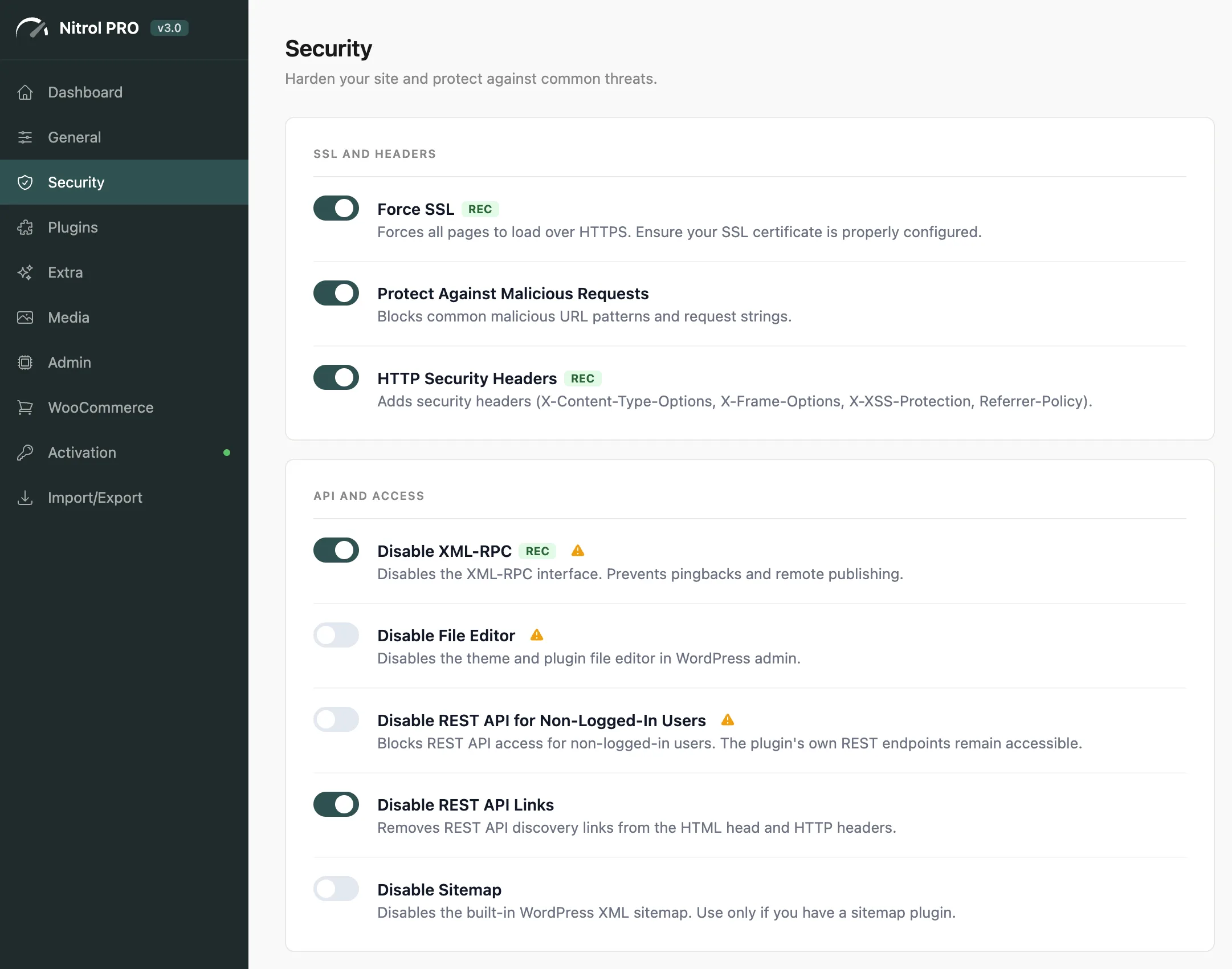
The four settings marked "Yes" below are recommended for virtually every production site. Enable them first, then review the rest based on your setup.
#Core Hardening
Setting | What it does | Rec |
|---|---|---|
Force SSL | Forces all pages to load over HTTPS - requires a valid SSL certificate | Yes |
HTTP Security Headers | Adds X-Frame-Options, X-Content-Type, HSTS, CSP, and 4 more browser security headers | Yes |
Block Malicious Requests | Blocks requests containing suspicious patterns like | - |
Disable XML-RPC | Disables the XML-RPC interface, which is a common brute-force target | Yes |
Disable File Editor | Removes the theme/plugin code editor from wp-admin | - |
Disable XML-RPC may break Jetpack and some mobile publishing apps that rely on it. Check before enabling. Disable File Editor cannot be reversed from the admin panel - you'll need FTP or file manager access to re-enable it.
#REST API & Visibility
Setting | What it does |
|---|---|
Disable REST API for Guests | Blocks REST API access for non-logged-in users - stops data harvesting bots |
Disable REST API Links | Removes REST API discovery links from your HTML |
Hide WordPress Version | Removes the WordPress version number from your source code and RSS feeds |
Disable XML Sitemap | Disables the built-in WordPress XML sitemap (use this if your SEO plugin provides its own) |
Hiding your WordPress version is a simple way to make automated scanners less effective - they often check the version to find known vulnerabilities. Pair it with keeping WordPress updated for best results.
#Login & Users
Setting | What it does | Rec |
|---|---|---|
Hide Login Error Details | Shows a generic error on failed login instead of revealing whether a username exists | Yes |
Disable User Enumeration | Blocks | Yes |
Disable Application Passwords | Disables the WP 5.6+ application passwords feature | - |
Disable Author Archives | Redirects author archive pages to the homepage (also prevents username discovery) | - |
Disable Pingbacks | Blocks all incoming and outgoing pingbacks | - |
Disable Trackbacks | Blocks all trackback requests | - |
#Access Control
Restrict Admin Access - select which user roles (Subscriber, Contributor, Author, Editor) cannot access wp-admin at all
Hide Admin Bar - select which roles should not see the admin toolbar on the frontend
Disable Comments URL - removes the URL field from the comment form, reducing spam
Disable Comments Author Class - removes the commenter's username from CSS classes on their comments, preventing username discovery through the frontend
Restricting admin access for Subscribers is a great default - it prevents unnecessary admin panel access while keeping their accounts functional for membership or gated content.
Last updated
Was this article helpful?

On this page
