
Security & Audit
Audit logging, access control, and cron hardening. Everything you need to know about who did what - and to stop unauthorized modifications before they happen.
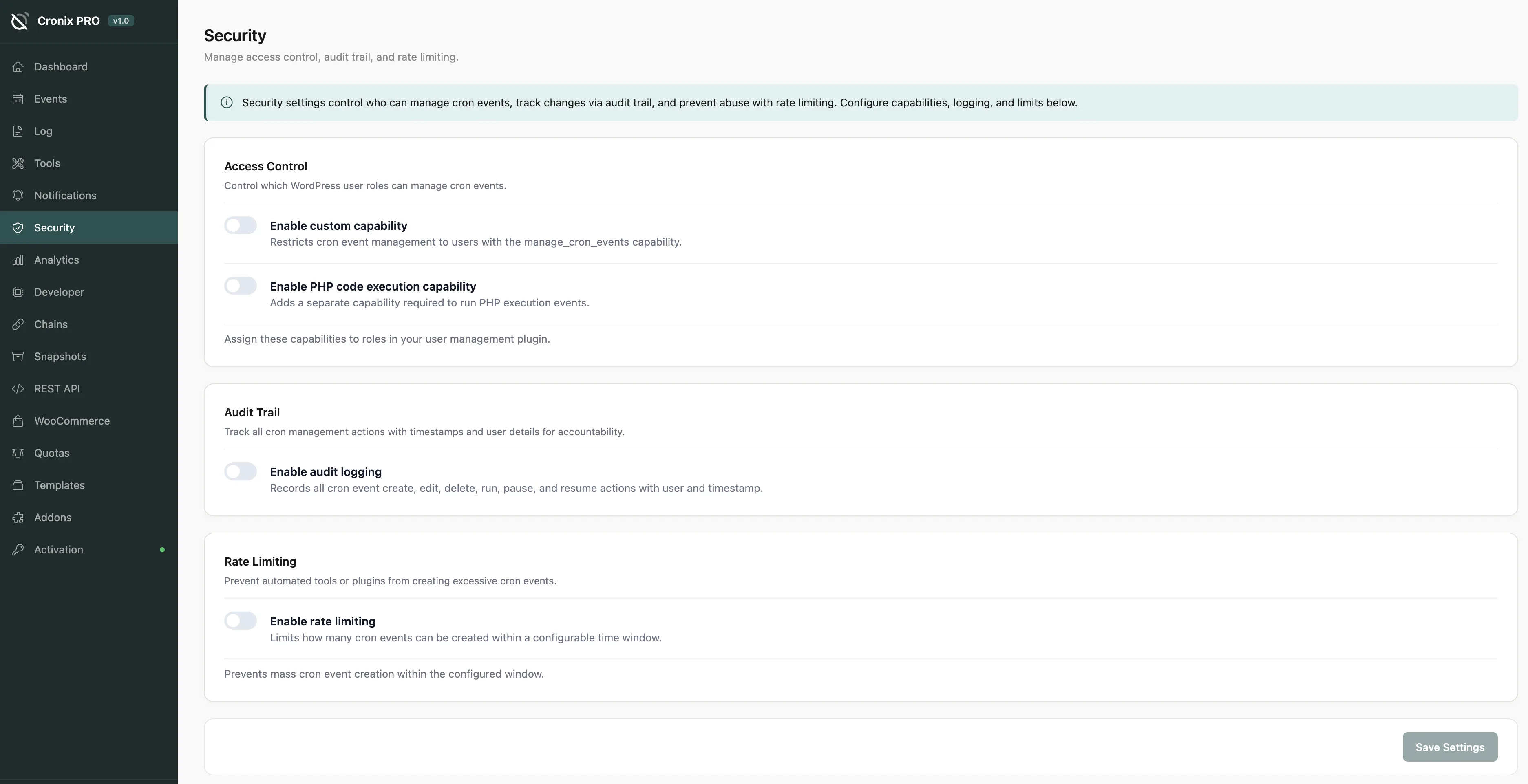
#Audit Log
Every action taken inside Cronix PRO is recorded: who made the change, what changed, and when.
Column | Description |
|---|---|
User | WordPress user who performed the action |
Action | What happened (event paused, setting changed, etc.) |
Target | The hook name or setting key affected |
Before / After | The old and new values where applicable |
Timestamp | When the action occurred |
IP Address | The user IP at the time |
The audit log is invaluable when multiple admins manage the same site. If a cron event disappears unexpectedly, the audit log shows exactly who deleted it and when.
#Access Control
Control which WordPress capabilities grant access to Cronix PRO features:
- View - read-only access to dashboards and logs
- Manage Events - pause, resume, run, and edit events
- Manage Settings - change plugin settings
- Admin - full access including delete and tool operations
#Cron Hardening
Option | What it does |
|---|---|
Disable direct wp-cron.php access | Blocks direct HTTP requests to wp-cron.php from unauthenticated sources |
Rate limit cron execution | Prevent the same hook from running more than N times per minute |
Block external cron triggers | Only allow cron execution from trusted IP addresses |
Enabling Disable direct wp-cron.php access will break external cron services that ping wp-cron.php directly. Use this only if you have switched to a server cron via WP-CLI or system crontab.
#Integrity Check
The integrity checker scans the registered cron schedule and flags:
- Events added or removed since the last snapshot
- Hooks with callbacks pointing to non-existent files
- Events with unusually high run frequencies that could indicate abuse
Run the integrity check after plugin updates to confirm the cron schedule is exactly as expected.
Last updated
Was this article helpful?

On this page
