
Menus and the header - Fabula
The header holds your logo, the main menu, a search button, and the color scheme switch. The menu comes from a menu location you fill in. The part about Fabula Pro starts under its own heading.
#Assign the main menu
Build the menu
Go to AppearanceMenus and create a menu with the pages, categories, and links you want.
Choose the location
Under Menu Settings, tick Navigation Menu in Display location and save the menu. You can also assign it in the Manage Locations tab on the same screen.
Add a copyright menu if you want one
The theme has a second location, Copyright Menu. Its links sit next to the copyright line in the footer. See The footer.

Until a menu is assigned, people who can edit theme options see the hint "No navigation menu found" in place of the menu. Visitors see nothing there.
#What the free header includes
- Search. The magnifier opens a full-width search bar over the header, with a button to close it.
- Color scheme switch. A sun and moon button lets visitors change between light and dark, and the theme remembers the choice. Set what a first-time visitor sees at AppearanceCustomizeFabula ThemeColors, on the General tab, under Default color scheme. The choices are
Device(default),Light, andDark. - Mobile menu. On narrow screens a menu button opens a full-screen overlay with the same menu and your copyright line.
The free header has no settings to remove the search or the switch.
For category menu items that show a post count and a panel of posts, see Category menu panel and post counts.
#Fabula Pro: the header settings
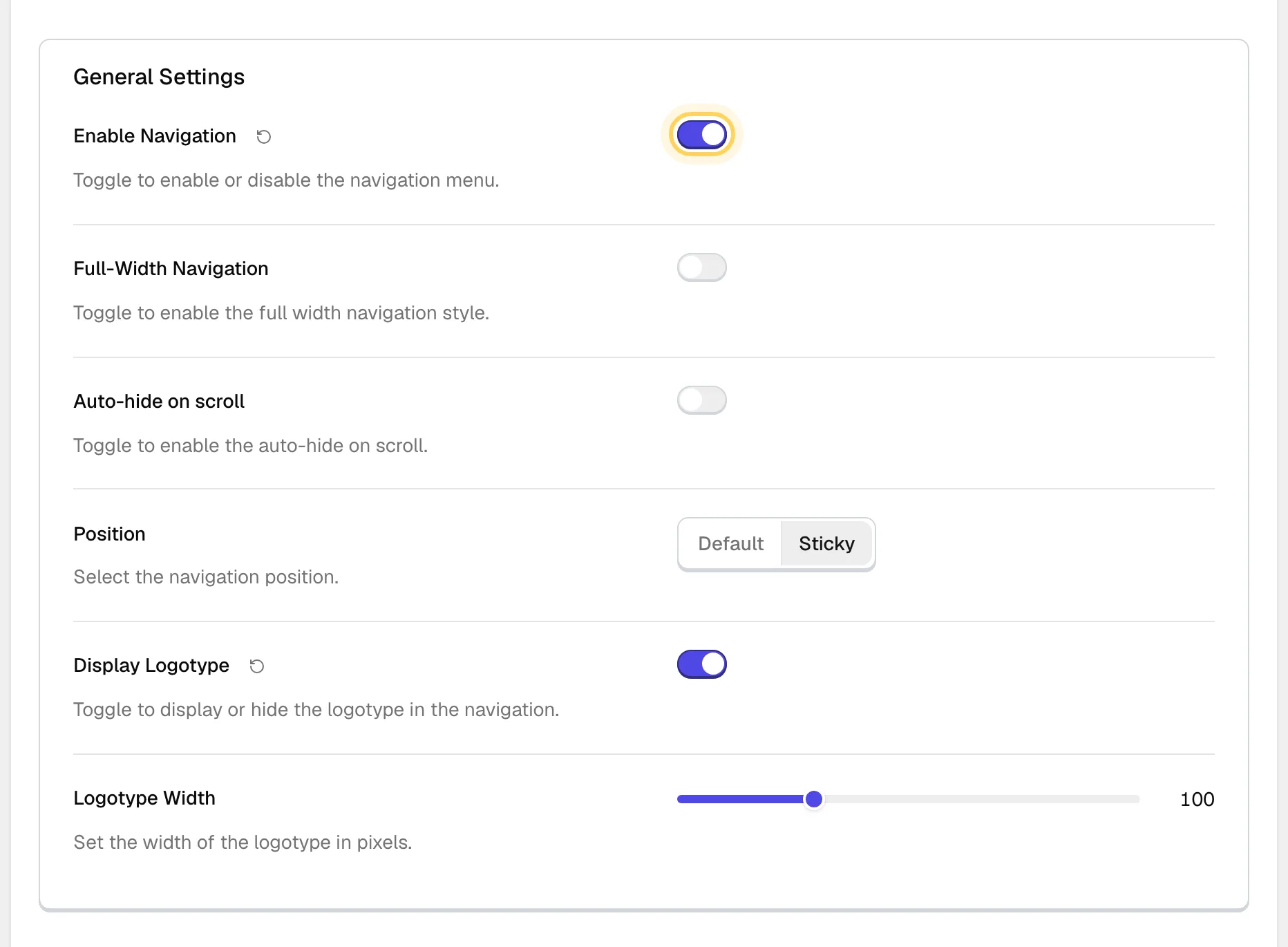
With Pro active, Pro draws the header and the free Customizer Navigation section is hidden. Open Fabula ProTheme OptionsNavigation.
Enable Navigation is off by default. Until you turn it on, the Pro header does not appear at all.
#General Settings tab
Shows the header.
Stretches the header across the page.
Hides the header as the visitor scrolls.
Default or Sticky.
Shows the logo from the Branding page.
In pixels, from 20 to 300. It appears while Display Logotype and Enable Navigation are on.
The light and dark button.
A bookmarks button with a panel of saved posts.
The search button.
A slide-in sidebar.
A shopping cart in the header.
An account icon next to search and bookmarks.
Where the account icon points. Leave it empty to use the WooCommerce or Paid Memberships Pro account page, with the login screen as the fallback.
#Mobile Settings tab
In pixels, from 20 to 300.
The logo inside the menu overlay.
The light and dark button on phones.
The copyright line in the overlay.
Your social links in the overlay.
A third tab, Custom Code, takes HTML or shortcodes placed before and after the logo, the menu, and the actions list.
#Turn the header off on one page
Every post and page has a Navigation Settings box. Turn off Enable Navigation there to hide the header on that page. The same box has switches for the top button, fixed social, and the top banner.
With Pro active, the default color scheme is Default Color Scheme on the Fabula ProTheme OptionsGeneral page (Light or Dark), next to System Color Scheme Detection. The Customizer setting above applies to the free theme only.
Last updated
Was this article helpful?

On this page
