
Write a post in Fabula - Fabula
A post in Fabula uses the WordPress editor you already know. The pieces that change how it looks on the site are the featured image, the categories, the excerpt, the format, and the sticky setting. This page walks through each one and ends with the Recent posts section under a post.
#Add the post
Start a new post
Go to PostsAdd New and write the title and the text.
Set the featured image
In the editor sidebar, open the Post panel and choose Featured image. The post shows it above the text, up to 500 pixels tall. On the post list it becomes the thumbnail on the card. A post without one shows no image area at all.
Choose categories and tags
Pick categories in the Categories panel and tags in the Tags panel. Every category shows as a label above the title and links to that category's page. Tags appear in a row under the text and link to their pages.
Write the excerpt
Open the Excerpt panel and write a short summary. The cards on the post list and in the home page sections show it, cut to 30 words on the post list. With the field empty, WordPress builds the excerpt from the start of the text.
Pick a format
Under Post Format, choose a format, or leave it on standard. The format shows on the card and the post. See Post formats.
Publish
Click Publish.
#How the card shows the format
A post with a format shows its name with a small icon at the right end of the row that holds the author and date. A post with the Link format also gets a small arrow after its title. A standard post shows no label.
On the post itself, the format name sits above the category labels.
#Make a post sticky
In the Summary panel, turn on Stick to the top of the blog. WordPress then keeps the post at the top of the blog page. Fabula marks a sticky post with an accent bar: along the left edge of its row in the list layout, along the bottom edge of its card in the grid layout, and beside the title block on the post itself.
#Show recent posts under a post
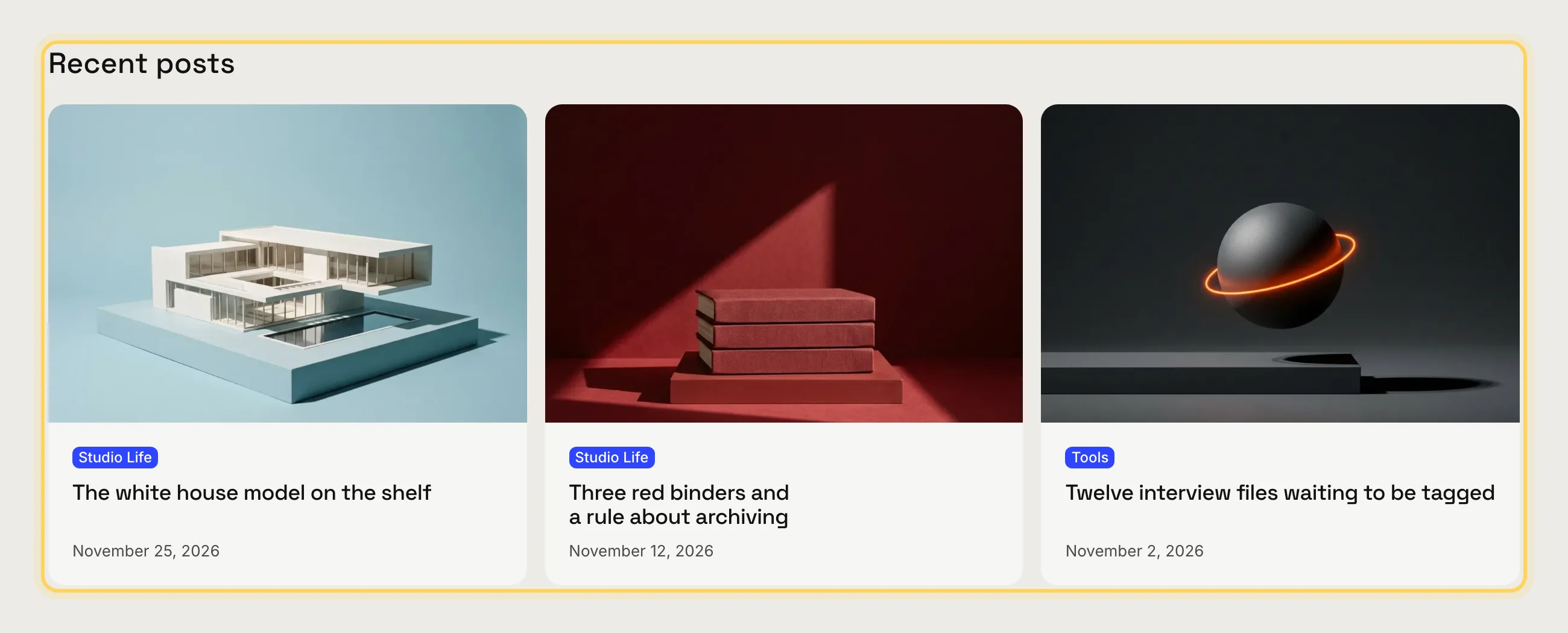
The theme ends each post with a Recent posts section: a row of cards with the image, the first category, the title, and the date. It never lists the post being read, and it hides itself when there is nothing to list.
Go to AppearanceCustomizeFabula ThemePosts:
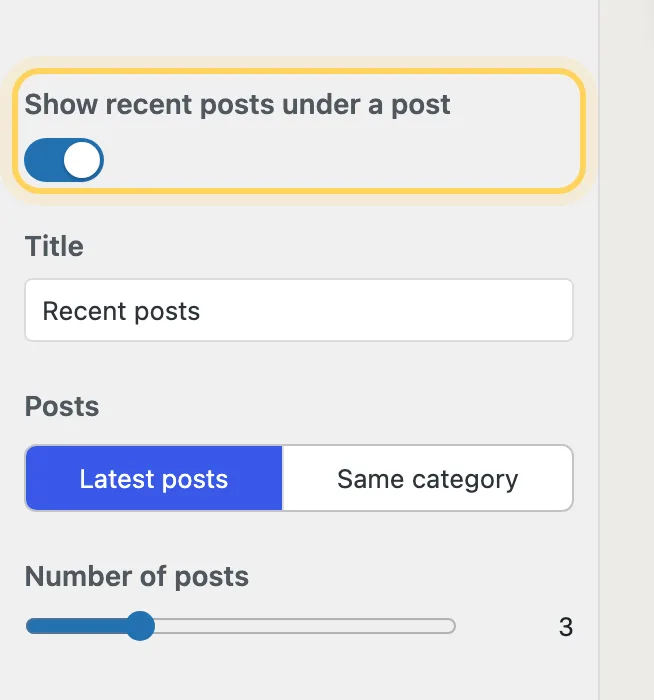
Turns the section on or off.
The heading above the cards. Leave it empty for no heading.
Latest posts lists the newest posts of the site. Same category lists the newest posts that share a category with the one being read.
From 2 to 6.
With Fabula Pro active, the Pro plugin draws the post, and the Posts section of the Customizer is not there. The Recent Posts tab of Single post settings in Theme Options controls the cards instead.
#Questions
My excerpt does not show on the post list
The excerpt shows on the cards, not on the post itself. Check that you filled in the Excerpt panel and updated the post. If it is empty, the card shows the start of the text.
The featured image looks cropped or blurry
See Why your images look blurry, cropped, or wrong. It explains how WordPress sizes images and how to regenerate them.
Last updated
Was this article helpful?

On this page
