
Add a review and score to a post - Fabula
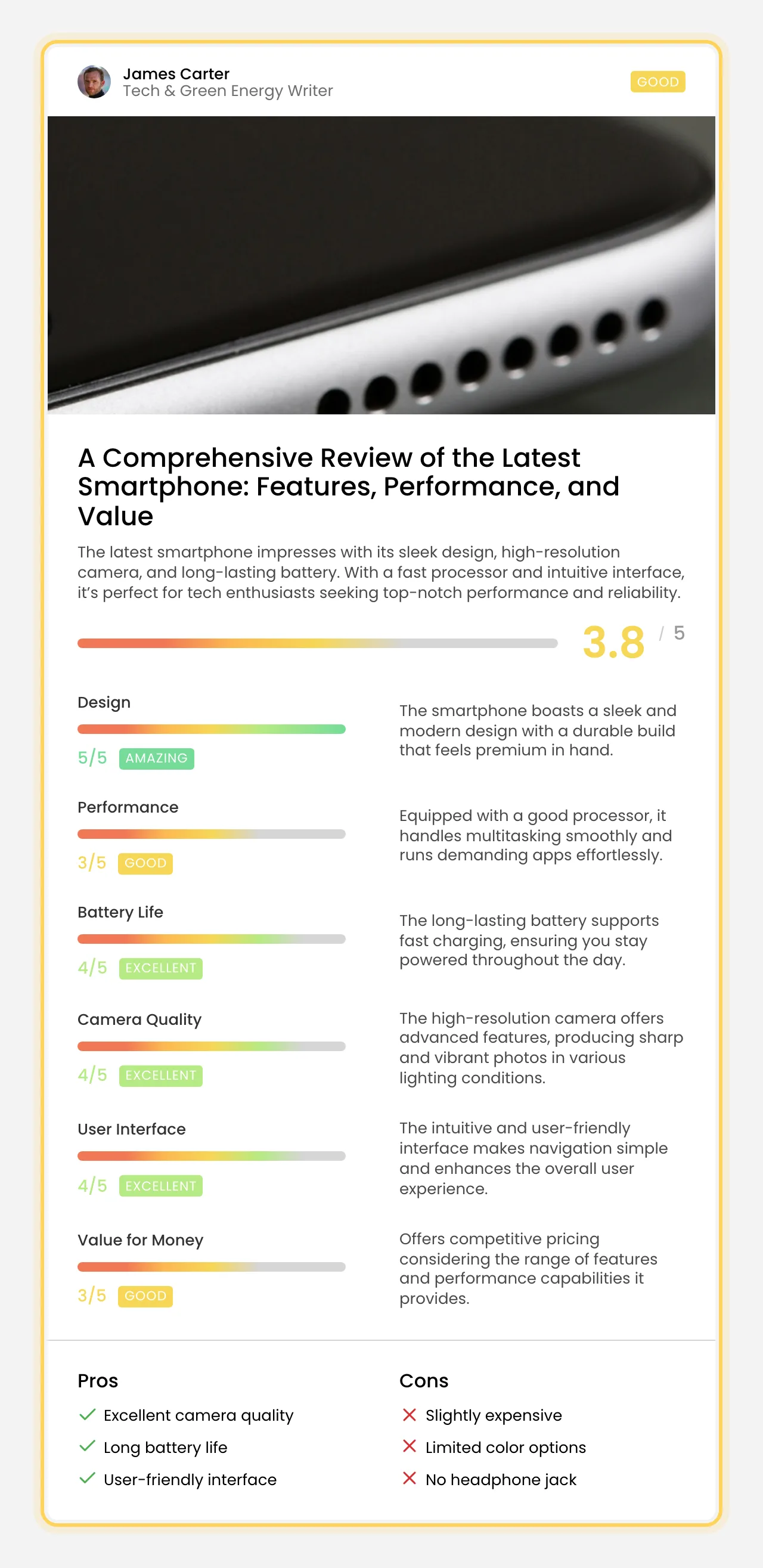
A review adds a scorecard to a post: a score out of 5, optional criteria with their own scores, and lists of pros and cons. You fill it in per post, and you choose how every review looks in Theme Options. Reviews need the Pro plugin with an active license.
#Add a review to a post
Turn the review on
Edit the post. Below the editor, find the Post Review box and turn on Enable Review (default: off).
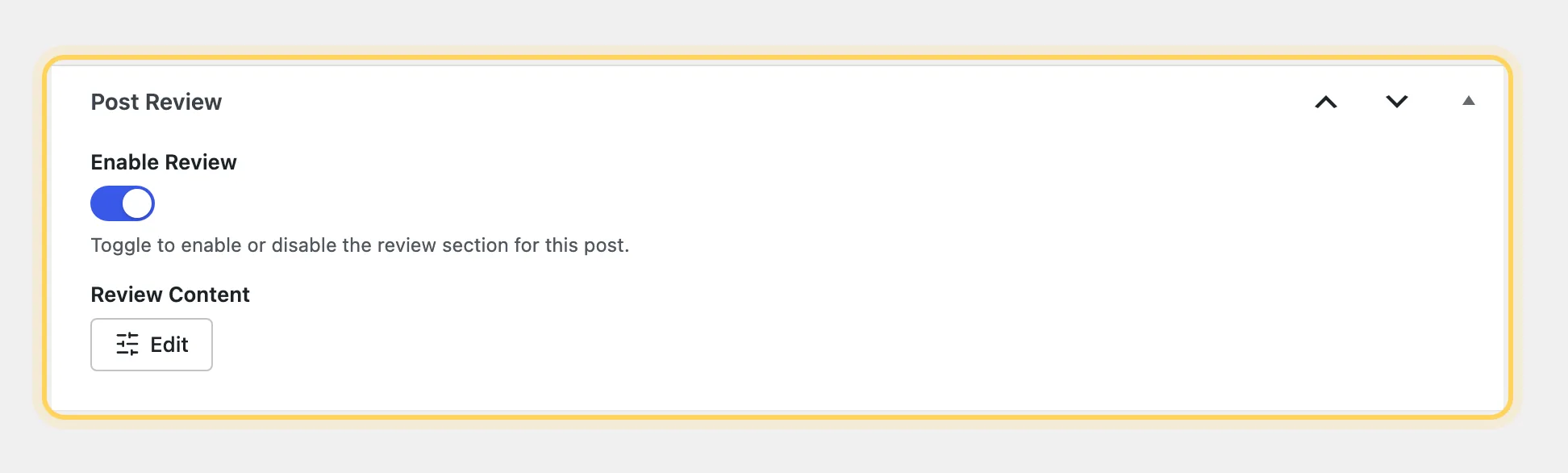
Open the review content
Next to Review Content, click Edit. A window titled Review Content opens.
Fill in the review
Complete the fields listed below, then close the window.
Update the post
Update the post. The review box sits under the text of the post, after the source line if there is one.
#Fields of a review
The heading of the review box.
Current shows the author of the post. Custom lets you pick someone else in Custom Author.
The text of the review.
A picture shown at the top of the box.
Single uses one score. Criteria scores each criterion separately.
The overall score for a single score, from 1 to 5 in steps of 0.1.
Rows with a Criteria Title, a Criteria Description, and a Criteria Score from 1 to 5 in whole steps (default: 5).
One row per point. They show as two columns under the review.
With Criteria, the overall score is the average of the criteria scores, shown with one decimal. You do not enter it yourself.
#Choose how reviews look
All reviews share the settings in Fabula ProTheme OptionsPost Reviews.
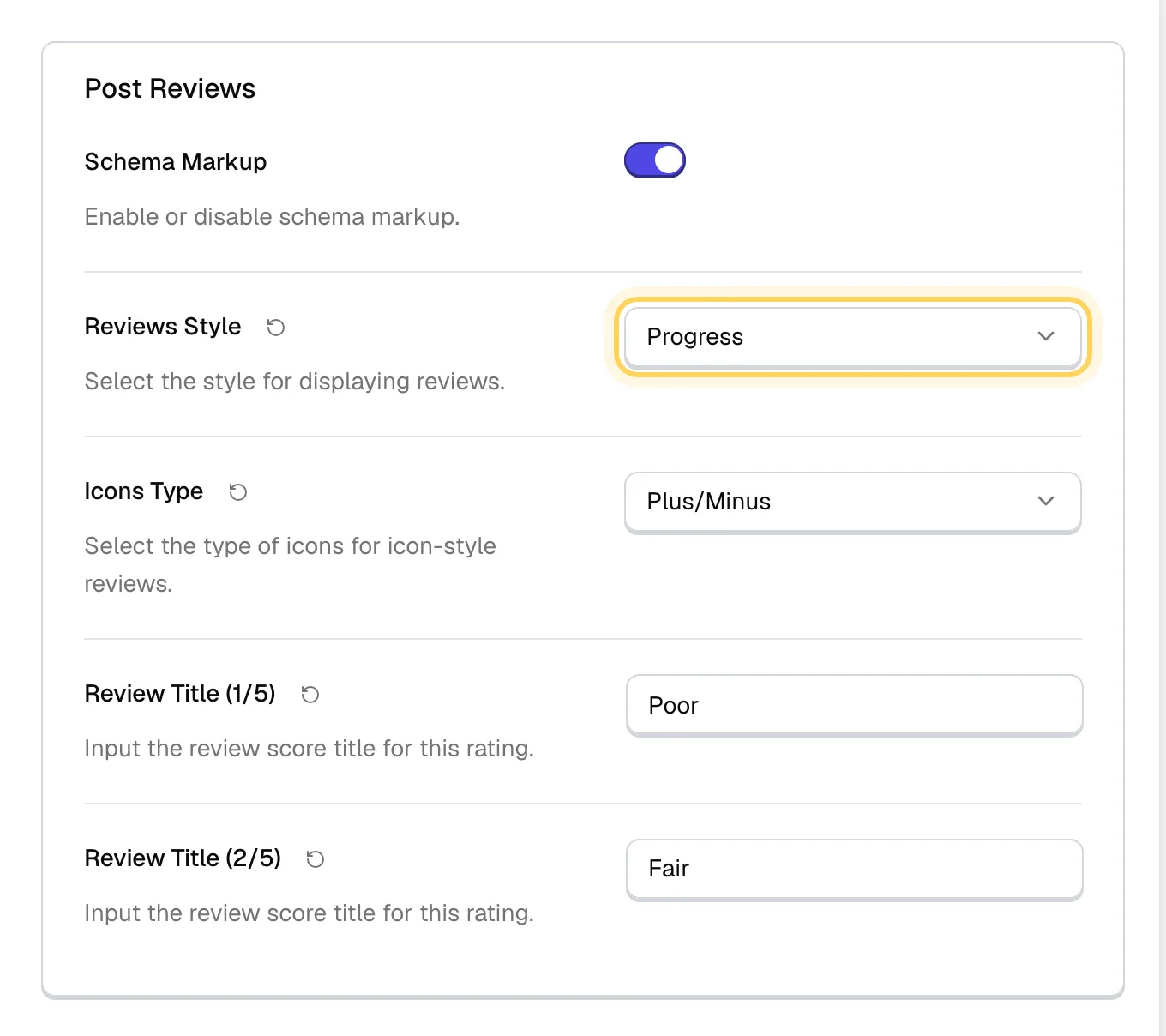
Adds review structured data to the page, which search engines can read.
How a score is drawn. Choose Points, Progress, Reaction, or Icons.
An image used by the Reaction style.
The icon used by the Icons style. Choose Star, Heart, Shining, Checkbox, or Plus/Minus.
A word or phrase for each score, such as "Poor" or "Excellent". The review box shows the one matching the whole-number part of the score. All five are empty by default, so no label shows until you fill them in.
The Review Colors group sets the Icon Color (default: #f6d757) and one color per score. The defaults are #f17955 for 1/5, #fbb851 for 2/5, #f6d757 for 3/5, #b6ea83 for 4/5, and #75dc99 for 5/5.
#Limit who can edit reviews
By default, anyone who can edit a post can edit its review. To change that, turn on Restrict Review Access (default: off) in Fabula ProTheme OptionsPost Reviews. Allowed Roles then lists the roles that may manage reviews, starting with administrator, editor, author, and contributor. Administrators always keep access.
#Show the score elsewhere
Two switches in Fabula ProTheme OptionsSingle Post on the Meta tab decide where else a score appears. Display Review Score (default: on) shows it in the post activity block, and the Recent Posts tab has Review Score (default: on) for the cards under a post.
#Questions
The review does not show on my post
Check that Enable Review is on in the Post Review box and that you updated the post. The review box needs an active Pro license, because Pro draws the single post.
Can I score out of 10 or 100?
No. Scores run from 1 to 5.
Last updated
Was this article helpful?

On this page
