
A featured post on category and tag archives - Fabula
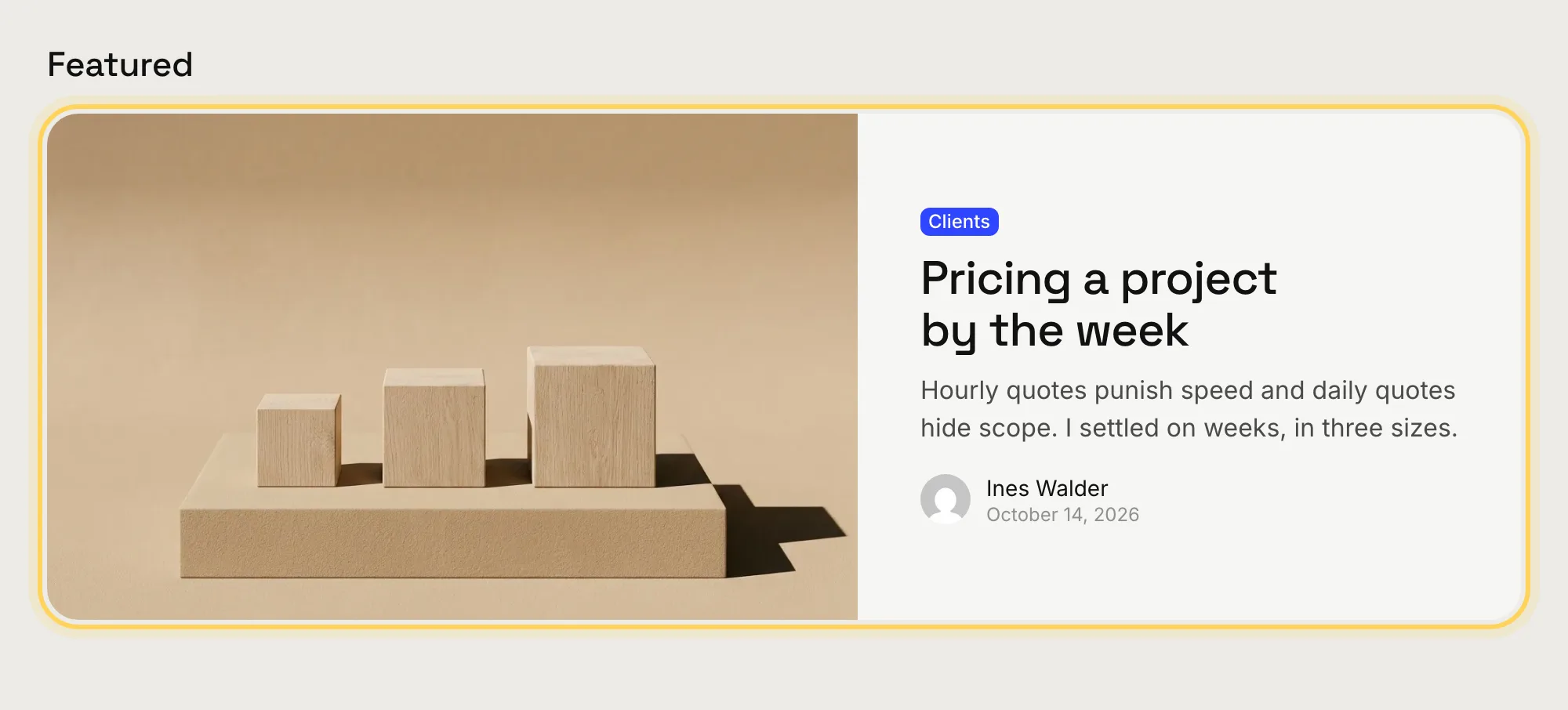
A category, tag, author, or date archive can open with one post shown large above its full list. The post always comes from that archive, so the News category features a news post and a tag page features a post with that tag.
#Turn it on
Open the Archives tab
Go to AppearanceCustomizeFabula ThemeBlog and open the Archives tab.
Switch on the featured post
Turn on Featured post above the list.
Pick which post
Under Post, choose Latest for the newest post in the archive, or Sticky for a post you marked sticky.
Pick the style
Under Style, choose List or Overlay. Then open a category page to check the result.
#Options
Shows the post on category, tag, author, and date archives.
Latest or Sticky.
List puts the text beside the image. Overlay puts the text over the image.
A heading above the post. Empty means no heading.
#Good to know
Overlayneeds a featured image. A post without one is shown in theListstyle instead.- With
Sticky, the post must be sticky and belong to the archive being viewed. If none does, nothing shows above that list. - The featured post appears on the first page of the archive only.
- By default the post leaves the list below, so it is not shown twice. To keep it in the list, turn off Leave section posts out of the list on the Layout tab.
- The same settings cover every category, tag, author, and date archive. You cannot feature a different post per category from here.
The posts page has its own, larger set of sections. See Sections above the post list.
While Fabula Pro is active, the Customizer Blog section is hidden and Pro draws the archive.
Last updated
Was this article helpful?

On this page
