
Sidebar widgets - Fabula
Fabula Pro adds five WordPress widgets, and the theme and the plugin together register the widget areas to put them in. You manage both at AppearanceWidgets. For how widget areas work in general, and why an area can look empty after a theme change, see Widget areas: what they are and why one is missing.
#The five widgets
Every widget has a Title field. The other options live in a Widget Options group for that widget. Each widget also appears in the widget list with a short description.
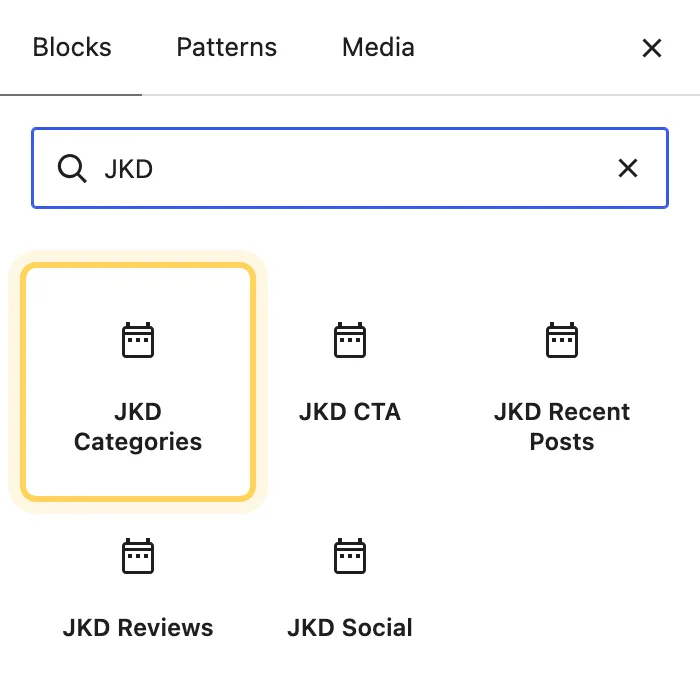
- JKD Categories
Description in the list:
Display categories. A list of categories.- JKD CTA
Description in the list:
Display CTA. A call to action box with an icon, a title, a text, and a button.- JKD Recent Posts
Description in the list:
Display recent posts. Your newest posts, as a compact list.- JKD Reviews
Description in the list:
Display reviews. Your posts that have a review, as a compact list.- JKD Social
Description in the list:
Display Social. Your social icons, taken from the Fabula ProTheme OptionsSocial page.
#JKD Categories
The maximum number of categories to show, from 1 to 100.
#JKD CTA
The CSS class of the icon above the title.
The main heading of the box.
The supporting text under the title.
The button. The button only appears when the link has both an address and a title.
#JKD Recent Posts
How many posts to show, from 1 to 10.
The publication date of each post.
The categories under each title.
The author name.
The author avatar next to the post.
The featured image of each post.
#JKD Reviews
How many reviews to show, from 1 to 100.
Sorts the reviews by publish date, DESC or ASC.
The review publication date.
The review categories.
The review author.
The author avatar for each review.
#JKD Social
One of Style 1 to Style 6. The icons come from the profiles you add on the Fabula ProTheme OptionsSocial page.
#Widget areas
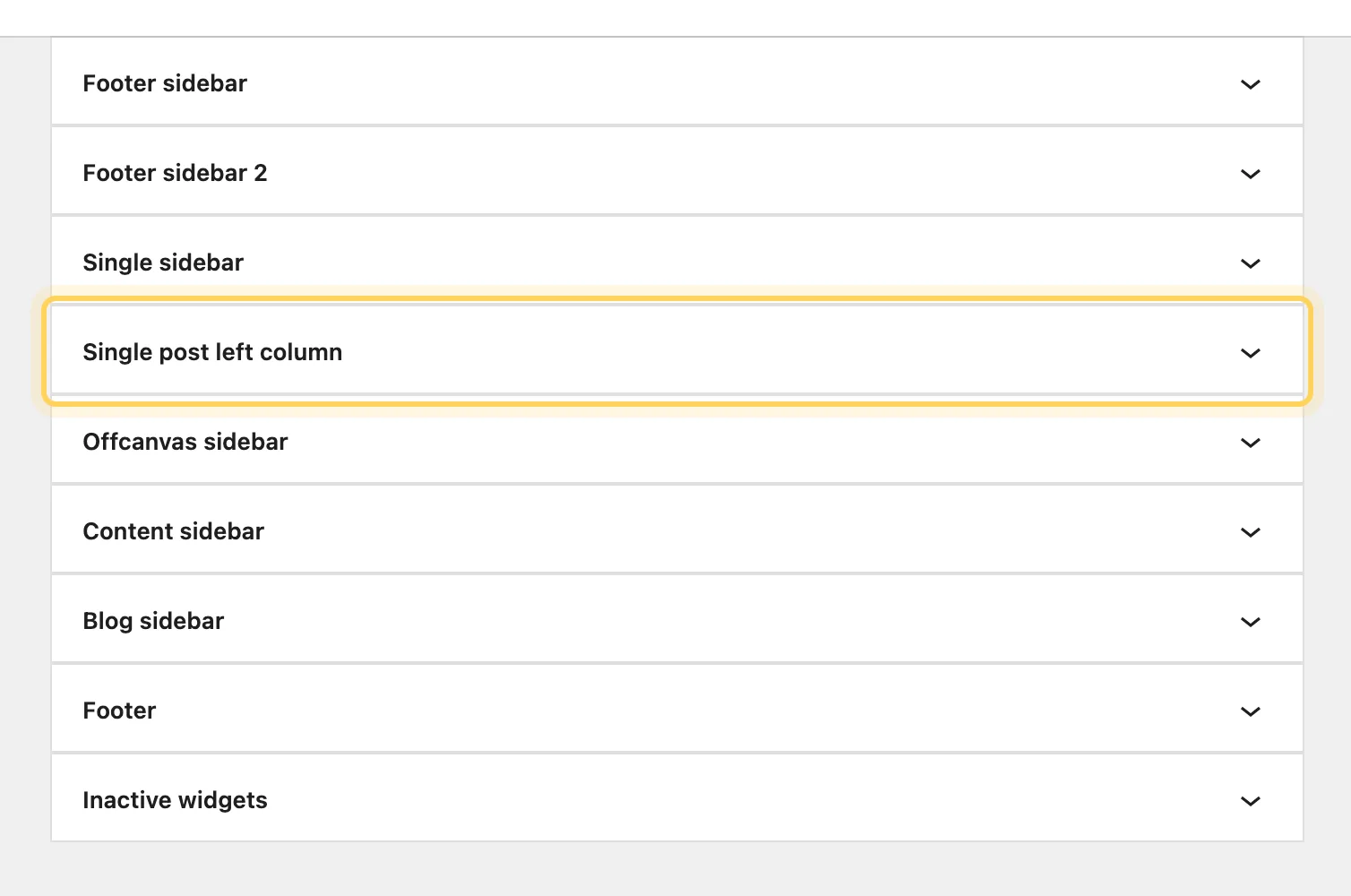
The theme registers two widget areas, and the Pro plugin registers six more. The Pro areas appear on the widgets screen while the plugin is active.
#Registered by the theme
- Blog sidebar
The sidebar of the blog and archive pages. The Pro archive layout uses it too. It prints only when the area has a widget in it and the layout has a sidebar.
- Footer
Widgets above the copyright bar, in up to four columns.
#Registered by the Pro plugin
- Footer sidebar
The footer widgets of the default footer style.
- Footer sidebar 2
The footer widgets of the classic footer style.
- Single sidebar
The sidebar of a single post.
- Single post left column
Widgets at the bottom of the left column of a single post, under the table of contents and the share buttons. Turn those two off in Fabula ProTheme Options to use the column for widgets only. With no widget in it, the area prints nothing.
- Offcanvas sidebar
The off-canvas panel of the header. It appears only after you turn on Enable Offcanvas Sidebar on the Fabula ProTheme OptionsNavigation page, and only when the area has a widget in it.
- Content sidebar
Registered by the plugin, but the current Pro templates do not print it anywhere, so a widget placed here does not show on the site.
My widget saved but nothing shows on the site
Check which area it sits in and whether that page uses it. A sidebar area prints only where the layout has a sidebar, and an empty area prints nothing.
Do the widgets work without Elementor?
Yes. These are WordPress widgets, so they need only the Pro plugin.
Last updated
Was this article helpful?

On this page
