
General settings - Fabula
The General page holds the site-wide switches of Fabula Pro. Open it at Fabula ProTheme OptionsGeneral. It has two groups: General and Style Tokens.
Most switches are off until you turn them on, so a fresh install stays light and plain.
#Display and behavior
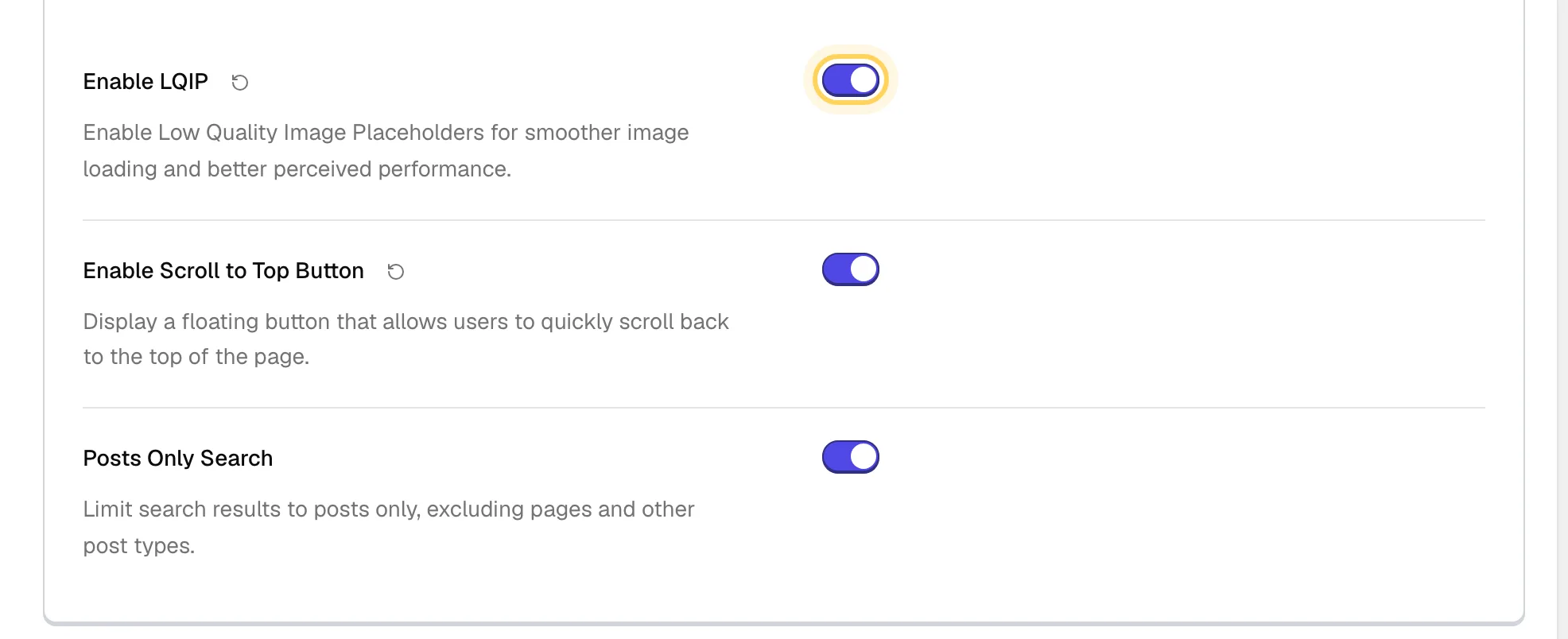
Shows a low quality placeholder of each image while the full image loads, so the page does not jump or show empty boxes.
Adds a floating button that takes visitors back to the top of the page.
Limits search results to posts. Turn it off if visitors should find pages and other content types too.
Turns on the subtle interface animations and transitions across the site.
Shows a preloader animation while the page loads.
Shows a fixed panel of your social icons on the side of the screen. The icons come from Social profiles. Each post and page has its own Enable Fixed Social switch, on by default, so you can hide the panel on single pages.
Scrolls smoothly to anchor links instead of jumping.
Improves how tables fit and scroll on small screens.
Adds extra columns to the posts list and the categories list in the admin, such as views, likes, and category previews.
#Color scheme
These two settings replace the Customizer's Default color scheme while Fabula Pro is active. See Colors and color schemes for how the switch works.
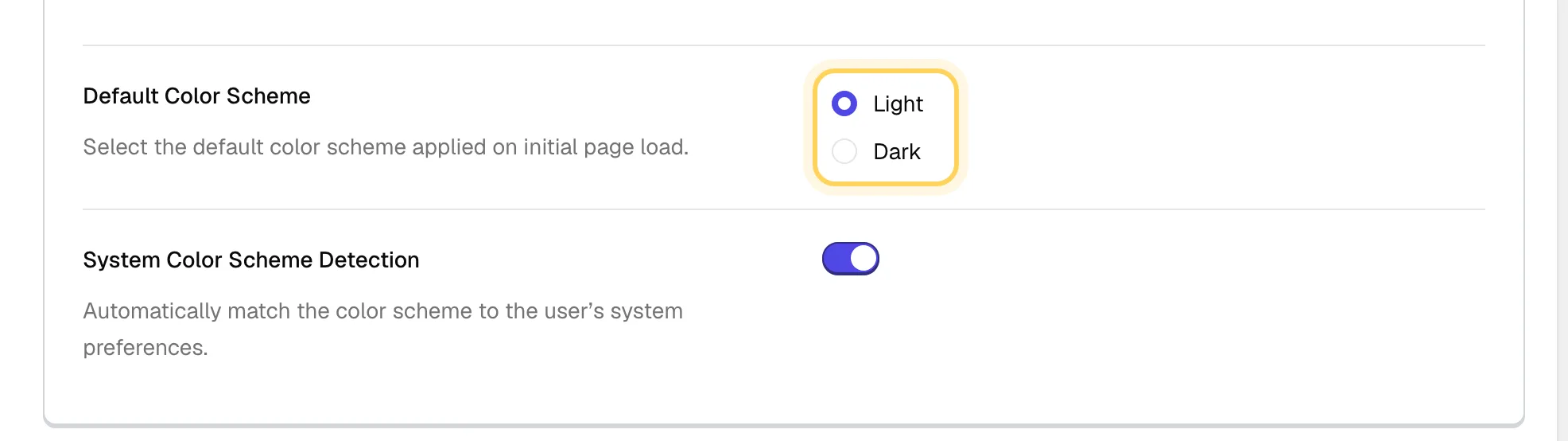
The scheme of a first visit. The choices are Light and Dark.
Matches the scheme to the visitor's device until they use the switch, and follows later changes of the device setting. Turn it off if the default scheme must always apply to first visits.
#Page layout
The overall layout of the site container. The choices are Full Width and Boxed.
The maximum width of the main content area in the boxed layout, from 960 to 1920 in steps of 10. It is hidden while Global Layout is on Full Width.
#Breadcrumbs
Shows breadcrumb navigation on archive and single pages. Each page also has its own breadcrumbs switch in its page header settings, and a page that has it off shows none.
Which system builds the breadcrumbs. The choices are Theme Default, Yoast SEO, and Custom Shortcode.
The shortcode that prints your breadcrumbs. It is shown only while Breadcrumbs Source is on Custom Shortcode.
#Custom code
HTML that prints before the site header.
HTML that prints after the site footer.
Custom code runs as written on every page. A broken tag or script here breaks the whole site layout, so test it on a staging copy.
#Style tokens
Four values that Fabula Pro layouts read. They are design tokens like the ones in the Customizer, kept here because only Pro uses them.
The size of text on single posts, in pixels, from 10 to 36.
The strongest shadow, for the highest elevation. Default rgba(0, 0, 0, 0.4).
The strongest overlay, for full-screen backgrounds. Default rgba(0, 0, 0, 0.8).
The border color of elements in the dark scheme.
The other shadows, overlays, and sizes are in Layout and design tokens.
Last updated
Was this article helpful?

On this page
