
Single post settings in Theme Options - Fabula
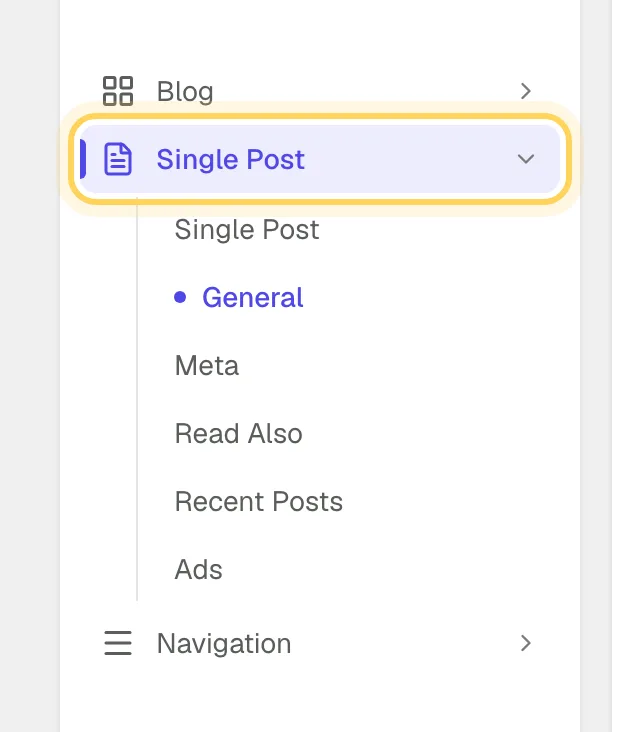
The Single Post page of Theme Options controls how a post is laid out and which extras it shows. It needs the Pro plugin with an active license. Open it at Fabula ProTheme OptionsSingle Post. It has six tabs: Single Post, General, Meta, Read Also, Recent Posts, and Ads.
The table of contents has its own page: Add a table of contents to posts. Comments, likes, views, bookmarks, and reviews are covered on their own pages too, linked at the end.
#Single Post tab
Shows the caption of the featured image under the post's meta row.
#General tab
#Layout
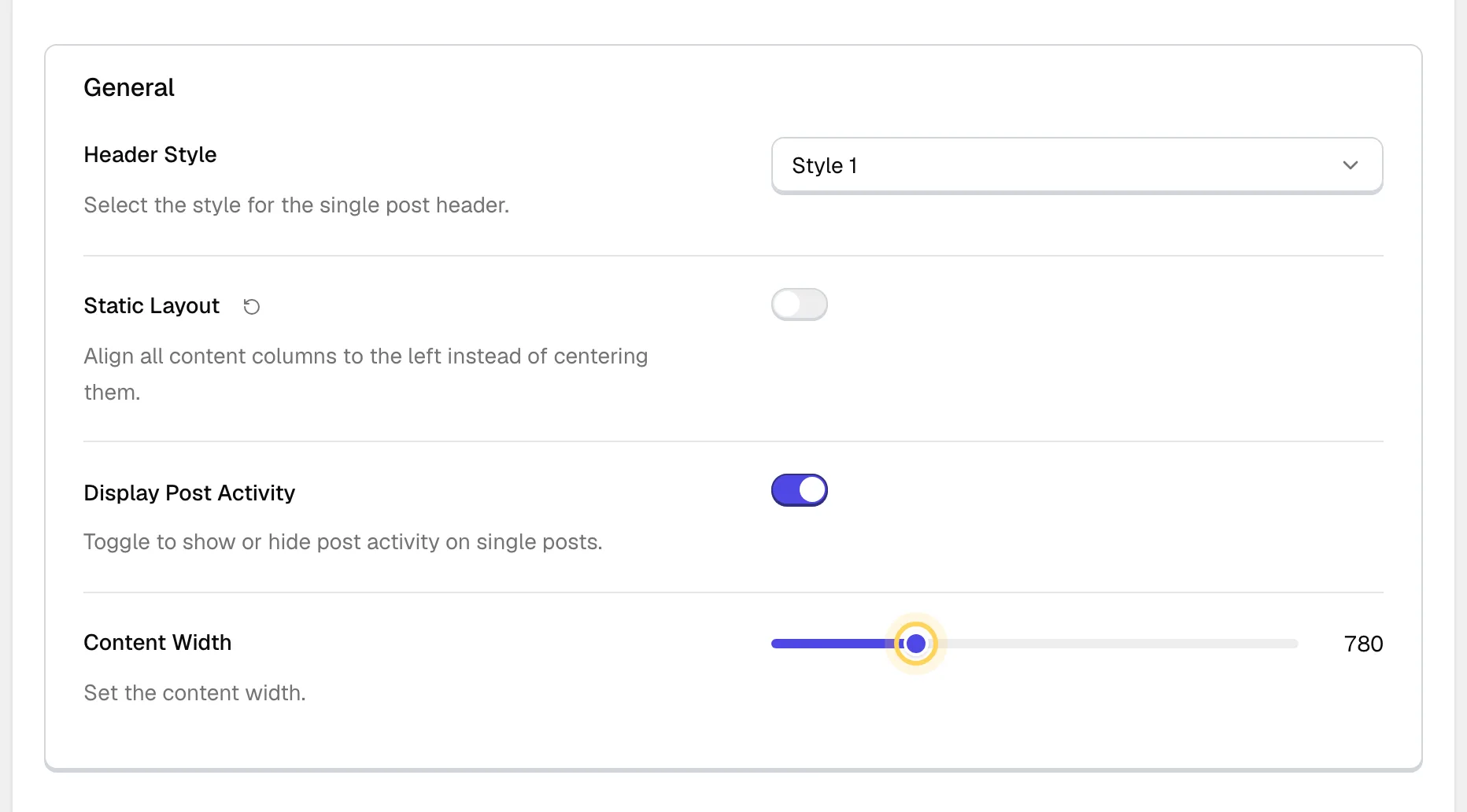
One of five header styles. See Post header styles.
Aligns all content columns to the left instead of centering them.
The width of the text column, from 600 to 1280.
Adds a sidebar filled from the Single sidebar widget area.
Left or Right.
The activity block with the comments, views, and likes counters in the sticky column.
A button that returns the reader to the top.
The share buttons in the sticky column. Nothing shows until you enter a Share Shortcode.
The shortcode of your sharing plugin.
#Author, navigation, and subscribe form
Previous and next post links under the post.
The author box.
Sticky puts the box in the sticky column. Default puts it under the post.
A newsletter block under the post. Fill in Form Shortcode with your form plugin's shortcode, and optionally Form Title, Form Subtitle, and Form Image.
#Reading aids
A thin bar fixed to the screen that fills as the reader scrolls.
Top or Bottom.
From 1 to 10.
Adds a Listen button above the text. It reads the article aloud with the speech engine built into the visitor's browser. No outside service or API key is involved, and the button hides itself in browsers without speech support.
The comment settings on this tab are explained in Set up comments on posts.
#Meta tab
The HTML tag of the post title.
A pin in the sticky column on posts you stuck to the top of the blog.
The category labels.
Style 1 to Style 6.
The tag list under the post.
The author's name, and the position under it.
The publish date.
The source line below the content. See the Source box below.
An estimated reading time in the meta.
Used to work out the reading time, from 100 to 400.
The total number of words, next to the reading time.
#Fields you fill in on each post
Three boxes in the post editor feed the page.
- Source
Source Name and Source URL. The post then shows "Source:" and the name below the content. With a URL, the name is a link that opens in a new tab. With a URL and no name, the site's address is the label.
- Post Disclaimer
Turn on Enable Disclaimer Box to show a box above the text. You can set a Label Text, a Disclaimer Title (default: Disclaimer), a Label Color, and the Disclaimer Text.
- Post Settings
The Header Style override and Hide Table of Contents.
#Read Also tab
A list of posts below the content of every post.
Shows the block.
The heading above the list.
The order: Latest, Likes, Views, or Random.
From 1 to 15.
#Recent Posts tab
The cards under a post.
Shows the section.
From 1 to 15.
The card design, Type 1 to Style 9.
From 1 to 10.
The offset between items, from 0 to 100.
The maximum number of words in a title, from 1 to 50.
The maximum number of words in an excerpt, from 5 to 100.
The tag of the Recent Posts: heading, from H2 to H6, or Div (no heading).
The tag of each card title.
Style 1 to Style 6, used when Category Label is on.
These switches choose what a card shows. All default to on except Post Activity, which defaults to off: Post Thumbnail, Category Label, Post Date, Author Name, Share Buttons, Bookmark Button, Post Activity, Review Score, Post Excerpt. With Post Activity on, Comments Count, Likes Count, and Views Count (all default: on) appear.
#Ads tab
Turns the ad spots on.
Image or HTML.
There are four spots: Sidebar, Content Top, Content Bottom, and Post Bottom. For the Image type, each spot has an image and a URL field, for example Sidebar Ad (Image) and Sidebar Ad (URL). For the HTML type, each spot has a code field, for example Sidebar Ad (Code).
#Related pages
- Add a table of contents to posts
- Add widgets to the left column of a post
- Add a review and score to a post
- Likes, views, and bookmarks
Last updated
Was this article helpful?

On this page
