
Set up comments on posts - Fabula
Fabula shows the native WordPress comments under every post. WordPress decides whether a post accepts comments, and the theme draws the list and the form. Fabula Pro adds a switch for the comments block, a collapsed view, and Disqus or Facebook comments.
#Turn comments on or off
Comments follow WordPress settings, with or without Pro.
- Site-wide default: SettingsDiscussion. Allow people to submit comments on new posts sets the default for new posts.
- One post: open the post, find the Discussion panel in the editor sidebar, and switch comments on or off.
A post whose comments are closed and that has none shows a Comments are closed notice in place of the form.
#What the theme shows
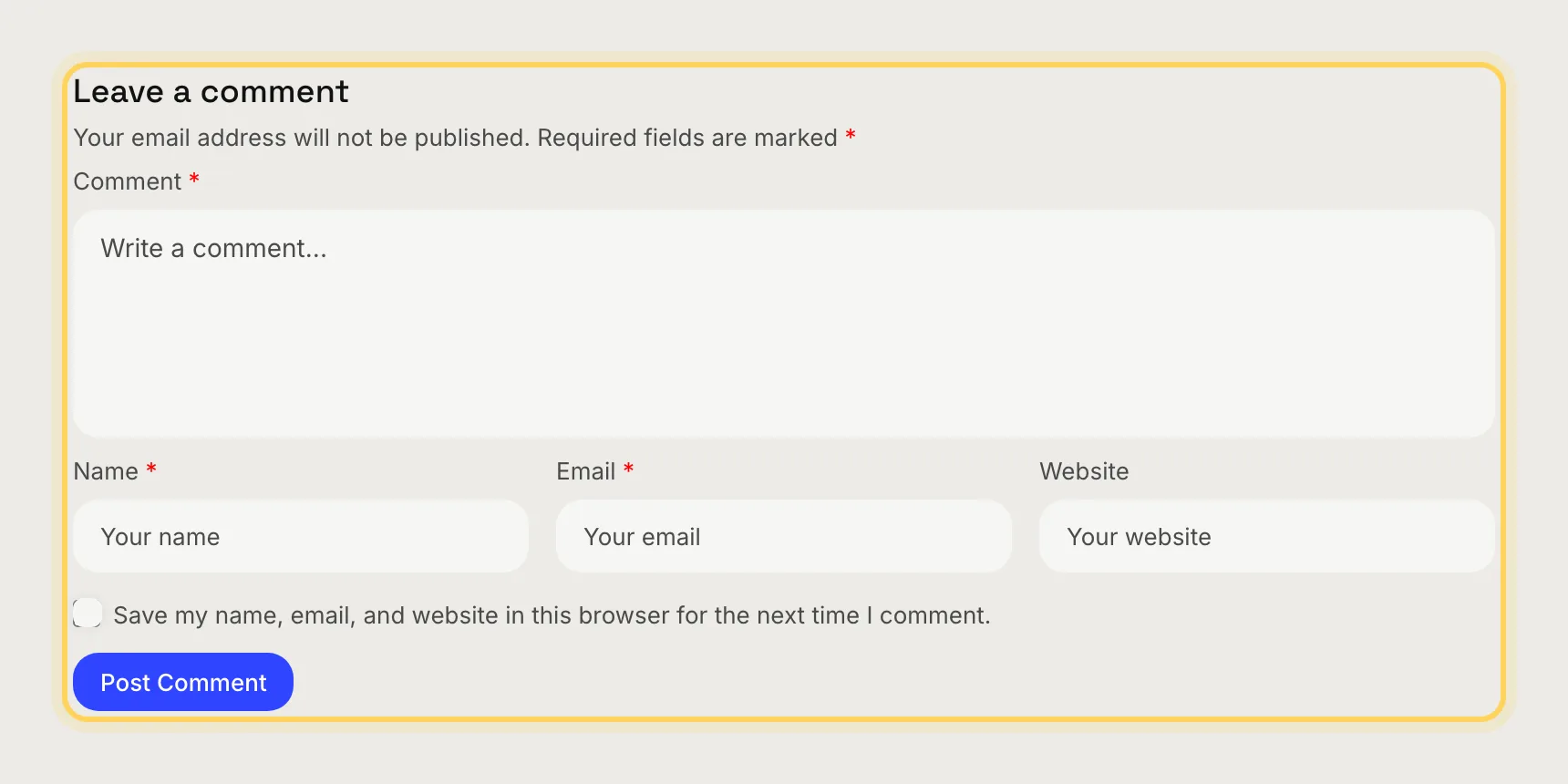
The form is titled Leave a comment. Existing comments appear as a list below it, with avatars when Show Avatars is on in SettingsDiscussion. A post with many comments splits them into pages with page numbers underneath.
#Fabula Pro: show and shape the comments block
With Pro active, the comments block is off by default. A post shows no comments until you turn on Display Post Comments.
Open the single post settings
Go to Fabula ProTheme OptionsSingle Post and open the General tab.
Show the block
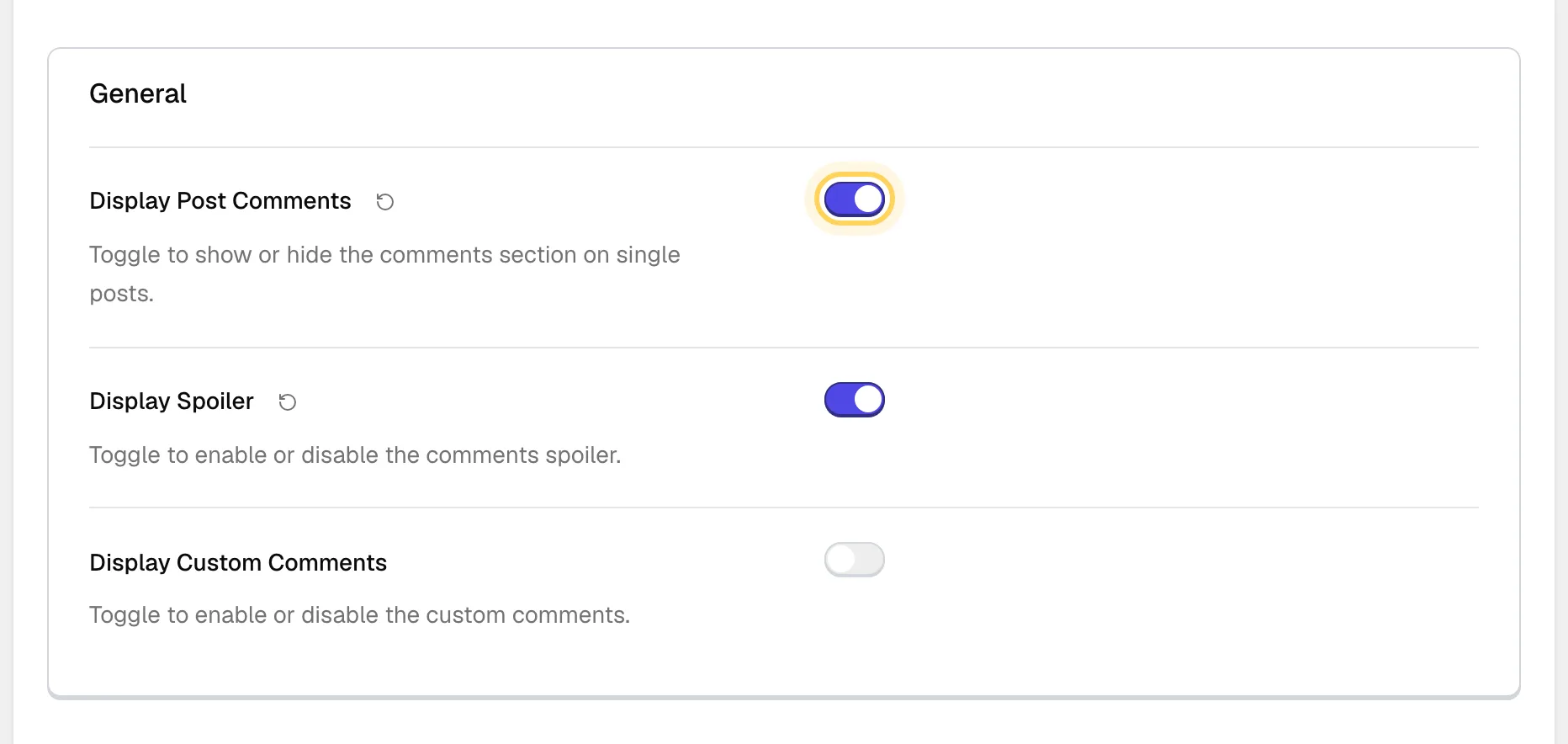
Turn on Display Post Comments (default: off). The comments show in the area under the post.
Collapse the list if you like
Turn on Display Spoiler (default: off) to hide the comments behind a Show Comments button with the comment count. A second click shows Hide Comments. The collapsed view applies to the native comments only.
Display Comments Counter on the Meta tab (default: on) shows the number of comments in the post activity block.
#Fabula Pro: Disqus or Facebook comments
To replace the native comments with a third-party service, use the General tab.
Switch to custom comments
Turn on Display Custom Comments (default: off). The native comments no longer show.
Choose a service
Turn on Display Disqus Comments or Display Facebook Comments. Both default to off. If both are on, Disqus shows.
Enter the ID
For Disqus, enter the shortname of your Disqus site in Disqus App ID: the part before .disqus.com in your site's Disqus address. For Facebook, enter your app's ID in Facebook App ID. Facebook comments show only when the ID is filled in.
The comments themselves live with Disqus or Facebook, so moderating them happens there and not in WordPress.
#Questions
Comments do not show on my posts with Pro active
Turn on Display Post Comments on the General tab of Fabula ProTheme OptionsSingle Post, and check that comments are open for the post.
Can I use the spoiler with Disqus?
No. Display Spoiler works with the native comments only.
Last updated
Was this article helpful?

On this page
