
Post formats - Fabula
Fabula supports nine WordPress post formats: aside, audio, chat, gallery, image, link, quote, status, and video. The free theme gives each one its own styling. Fabula Pro adds fields for four of them, so a video, an audio file, a gallery, or a quote becomes part of the post header.
To pick a format, open the post and choose it under Post Format in the editor sidebar. A post with no format is a standard post.
#What every format shows in the free theme
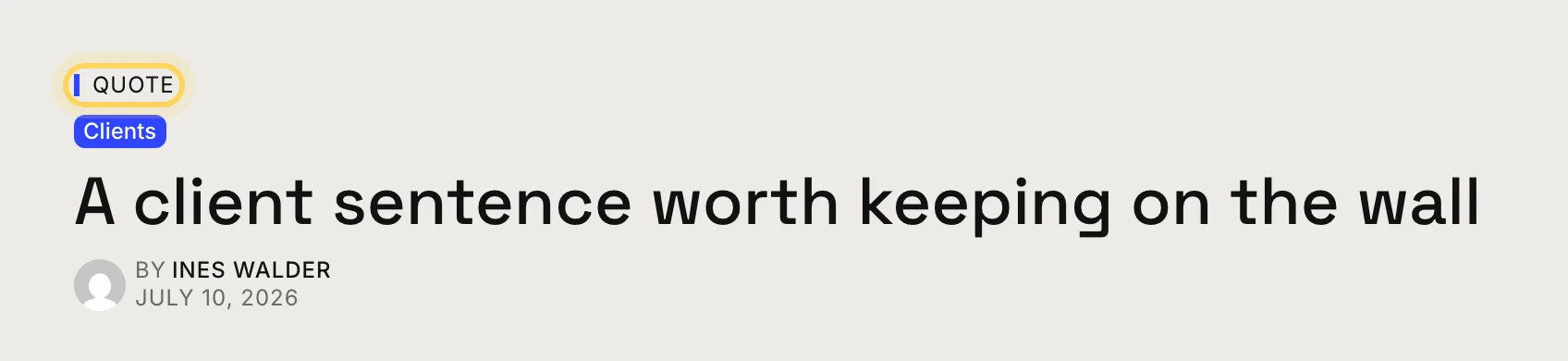
The theme prints the format's name on the post, above the categories. In the post list, the name appears with a small icon at the right end of the row with the author and date. These apply to every format except standard.
#Free styling for each format
- Aside and status
The first paragraph of the post is set larger, in the heading color.
- Quote
Quotes inside the post get an accent bar on the left.
- Link
The first paragraph gets the same accent bar. In the post list, the title carries a small arrow icon.
- Image and gallery
Pictures in the post get rounded corners that follow your corner radius.
- Chat
Speaker names in bold take the heading color, and the lines get more space between them.
- Audio and video
No extra styling in the free theme beyond the format name. Add the player or the clip in the post itself.

This section describes the free theme's own post and post list. Fabula Pro draws posts and lists with its own templates, so with Pro active the formats show through the Pro fields below.
#Fabula Pro: fields for four formats
With the Pro plugin and an active license, choosing one of these formats shows an extra box in the editor. The boxes appear only for their own format. The header style you picked sets how the media sits in the header, see Post header styles.
#Video
The Video Settings box has Upload Video File, which takes MP4, WEBM, or OGG.
The video plays muted and on a loop, without controls, as the header background. With header style 2 it plays in place of the featured image, below the title. In Pro post grids with Enable Format View on, a video post shows a play button that opens the video in a pop-up.
#Audio
The Audio Settings box has Upload Audio File, which takes MP3, WAV, or OGG, and Audio Layout (default: Default).
The player sits in the post header, under the date and author. On small screens it also shows above the text.
The player sits in the sticky column beside the text, under the heading Audio Post.
#Gallery
The Gallery Settings box has Upload Gallery Images, where you can add several images at once, and Gallery Layout (default: Slider). The featured image is the first picture of the gallery.
The pictures slide in the header, with previous and next buttons.
A full-width header with the pictures as a slideshow behind the title.
A justified grid below the title. Each picture links to its full-size file.
In Pro post grids with Enable Format View on, a gallery post shows its pictures as a slide inside the card.
#Quote
The Quote Settings box has Quote Text, Citation, and Quote Layout (default: Sticky). Nothing shows until Quote Text is filled in.
The quote sits in a card in the sticky column beside the text.
The quote becomes the header, in large type over the featured image, with the citation under it. This replaces the header style for that post.
Ken Burn, Mosaic, and the Featured quote layout take over the header, so they ignore the Header Style you chose for the post.
#Questions
Can I use a YouTube or Vimeo address for a video post?
The Video Settings box takes an uploaded file in MP4, WEBM, or OGG format. It has no field for a YouTube or Vimeo address.
The extra box does not show in the editor
Pick the format first. The box for video, audio, gallery, and quote appears once the matching Post Format is selected. It also needs the Pro plugin with an active license.
Last updated
Was this article helpful?

On this page
