
Fields on categories, authors, and widgets - Fabula
Fabula Pro adds extra fields to three places in the admin: the category editor, the user profile, and a set of its own widgets. They live with the item they describe, so a category's color is set on the category and an author's job title on the author. None of these fields appears on the Theme Options page.
#Category fields
Open PostsCategories, click a category to edit it, and scroll to the Category Options box.
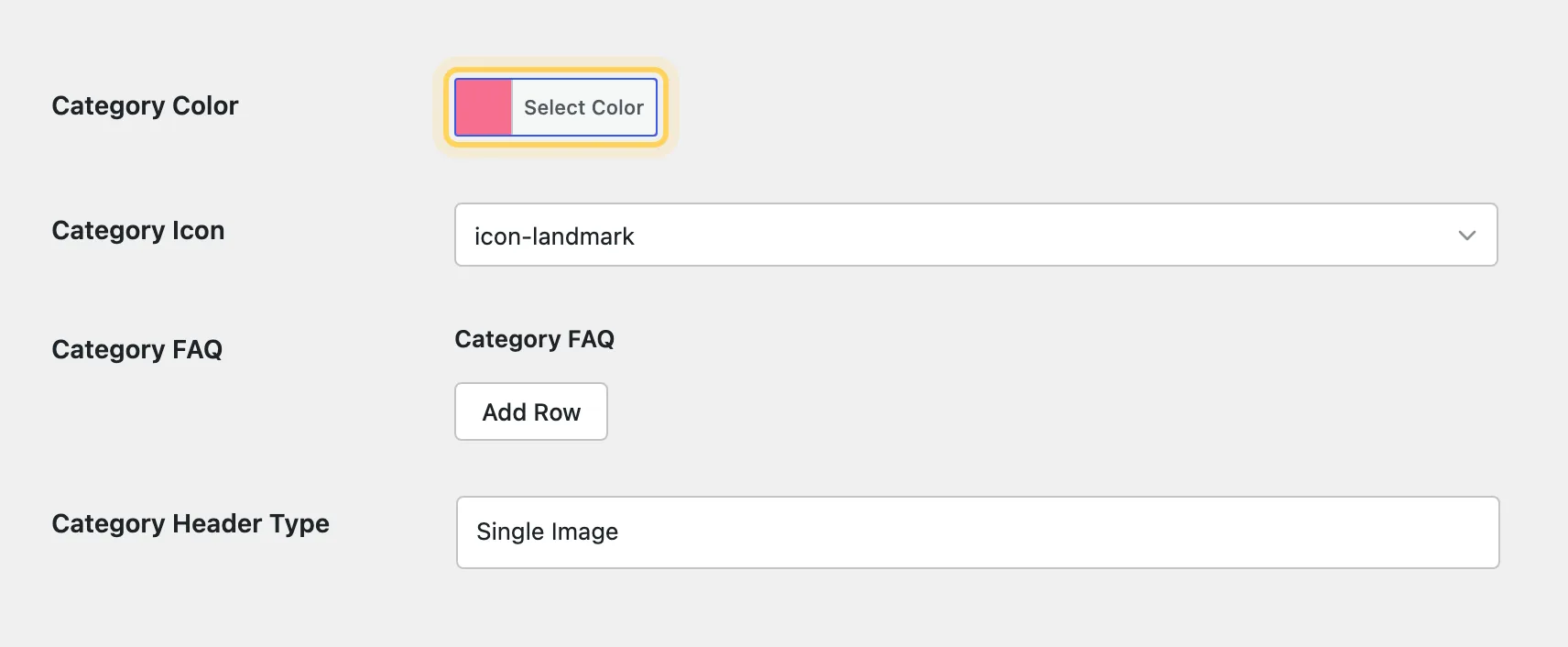
A color for this category. The theme uses it for the category label and similar highlights, where a post shows its category.
An icon from the theme's icon set, picked from a list. It shows next to the category in places such as category lists.
Rows of Question and Answer. They are shown on the page of this category.
What fills the header of the category page. The choices are Single Image, Video, and Ken Burns Gallery. The three fields that follow show only for their own choice.
The header picture. Shown while the type is Single Image.
Click Edit to open the video settings. They show only while the type is Video and are described below.
Click Edit to choose the Images (required) and the Slide Duration (seconds) (default: 8, at least 3). It shows only while the type is Ken Burns Gallery.
Text shown above the posts of this category.
Text shown below the posts of this category.
The video settings:
The choices are YouTube, Vimeo, and Self-hosted.
The address of the video. Shown for YouTube and Vimeo.
The file, in mp4, webm, or ogg format. Shown for Self-hosted.
The still image shown before the video plays.
Starts the video by itself.
Repeats the video.
Plays the video without sound. Browsers often block autoplay with sound, so leave this on when Autoplay is on.
#Author fields
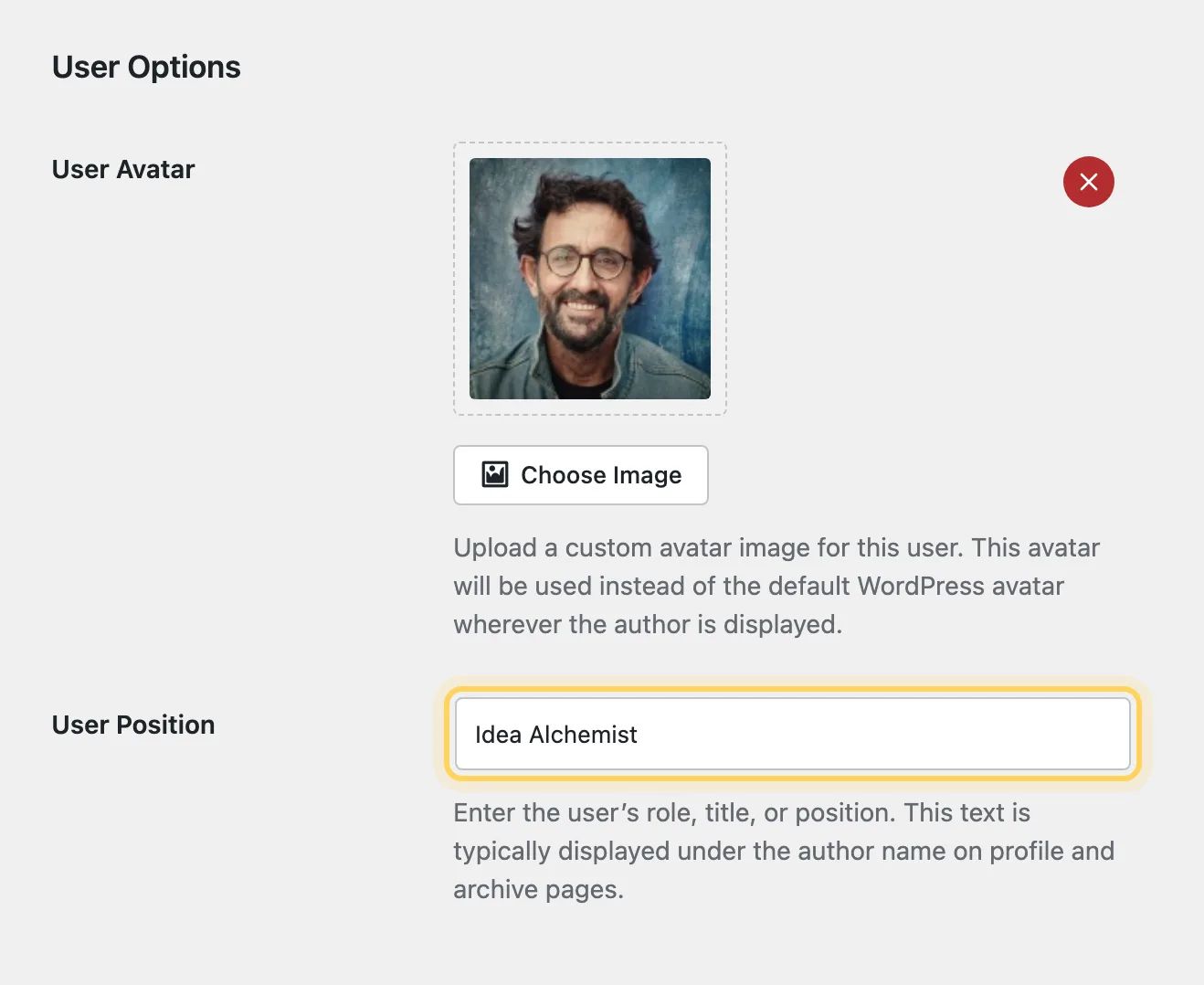
Open UsersAll Users, click a user to edit them, and scroll to the User Options box. It appears for users with the Administrator, Editor, Author, or Contributor role. The author box under a post and the author's archive page read these fields.
An image to use instead of the WordPress avatar wherever the author is shown.
A job title such as Editor-in-Chief, shown with the author name on the author's archive header and in the author box.
The author's own social links, as rows. Each row has a Social Link (the full address), a Social Text (the network name, used as the link label), a User Icon (picked from a list), an optional Social Count, and an Icon Color. Leave the color empty to use the default theme color.
The social icons of the site itself are a different list. See Social profiles.
#Widget fields
Fabula Pro registers five widgets, and each one has its own settings inside its box at AppearanceWidgets. They show up after you add the widget to an area. For how widget areas work, see Widget areas: what they are and why one is missing.
#JKD Recent Posts
How many posts, from 1 to 10.
The publication date of each post.
The categories under each post title.
The author name.
The author avatar beside the post.
The featured image of each post.
#JKD Categories
The most categories shown, from 1 to 100.
#JKD Reviews
How many reviews, from 1 to 100.
The choices are DESC for newest first and ASC for oldest first, by publication date.
The review date.
The categories of each review.
The author.
The author avatar.
#JKD CTA
The class name of the icon at the top of the box.
The heading. Replace the placeholder text.
The supporting text below the heading. Replace the placeholder text.
The address the button opens.
#JKD Social
One of six looks for the icons, from Style 1 to Style 6. The icons come from the list described in Social profiles.
Last updated
Was this article helpful?

On this page
