
Set up dark mode - Fabula
Dark mode is part of the free theme, with no plugin needed. Your site has a light scheme and a dark scheme, a switch in the header lets visitors change between them, and the choice is remembered in a cookie. This article gets you from the defaults to a dark mode you have checked yourself.
The color settings themselves are listed in Colors and color schemes.
Pick what visitors see first
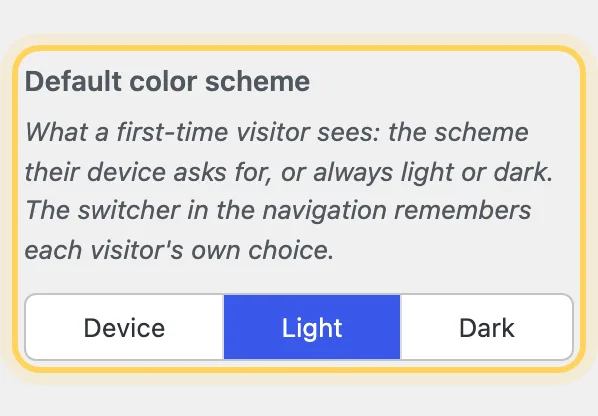
Go to AppearanceCustomizeFabula ThemeColors and stay on the General tab. Choose a value for Default color scheme:
- Device (the default) follows the visitor's phone or computer. It suits most public sites.
- Light or Dark opens every first visit in that scheme, whatever the device asks for.
A visitor who clicks the switch overrides this choice from then on.
Set the dark colors
Open the Dark tab. It holds four colors: Background, Background (Secondary), Heading Color, and Text Color. They apply only while the dark scheme is showing, so you can change them freely without touching the light site.
Keep enough contrast between Text Color and Background. The defaults are #c7c7c7 text on #34363a.
Check the accent on both backgrounds
The accent color (Primary on the General tab) is shared by both schemes. Look at buttons and links in the preview with the dark scheme on, and pick a value that reads well on the light and the dark background.
Publish and test the switch
Click Publish. Then open your site in a private browser window, so no earlier choice is stored:
- Check which scheme the first visit shows. It should match step 1.
- Click the sun and moon switch in the header. The site changes scheme.
- Open another page. The scheme stays as you left it.
To test Device, change the appearance setting of your computer or phone from light to dark, then open the site in a new private window.
If the scheme follows your choices on a second page, dark mode is working.
#With Fabula Pro active
Fabula Pro moves the default scheme to its own panel, and the Customizer's Default color scheme no longer applies. Do this instead:
Set the default
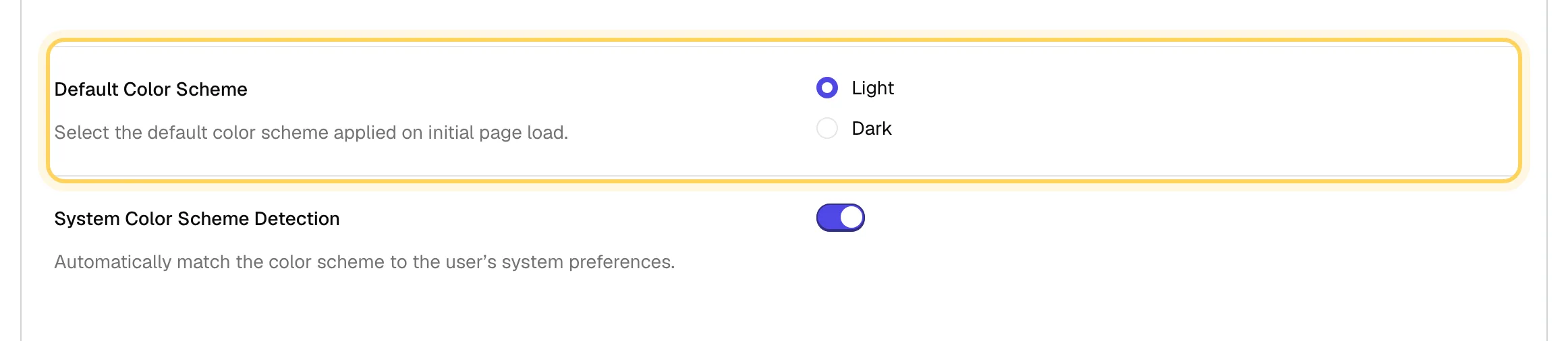
Go to Fabula ProTheme OptionsGeneral and choose Light or Dark for Default Color Scheme. Leave System Color Scheme Detection on (its default) to follow the visitor's device until they use the switch, or turn it off to always start from your default.
Turn on the switch
Pro's menu has the switch off by default. On Fabula ProTheme OptionsNavigation, turn on Enable Color Switcher on the General Settings tab for the desktop menu. For phones, turn on Enable Color Switcher on the Mobile Settings tab.
The dark colors are still set in the Customizer, on the Dark tab described above.
#Questions
The default does not change when I test it
A choice made with the switch is stored in the browser and wins over the default. Test in a private window, or delete the jkd-color-scheme cookie. Clear any page cache plugin as well, because a cached page can carry the other scheme.
Can I show only the dark site?
Set the default to Dark. The free theme always shows its switch, so a visitor can still change to light.
Last updated
Was this article helpful?

On this page
