
Top banner - Fabula
The top banner is a slim announcement bar above the header. It can carry a label, a line of text, and a link button, and visitors can close it.
The banner is part of the Pro header. It shows only while Enable Navigation is on, on the Fabula ProTheme OptionsNavigation page.
#Turn the banner on
Open the Top Banner page
Go to Fabula ProTheme OptionsTop Banner.
Switch it on
Turn on Top Banner. The other fields appear.
Write the message
Fill in Content Text, and Label if you want a small badge before it. For a link, fill in both Button text and Button link. The button needs both to show.
Choose the look
Set Banner Height and Background Type, then open your site to check the result.
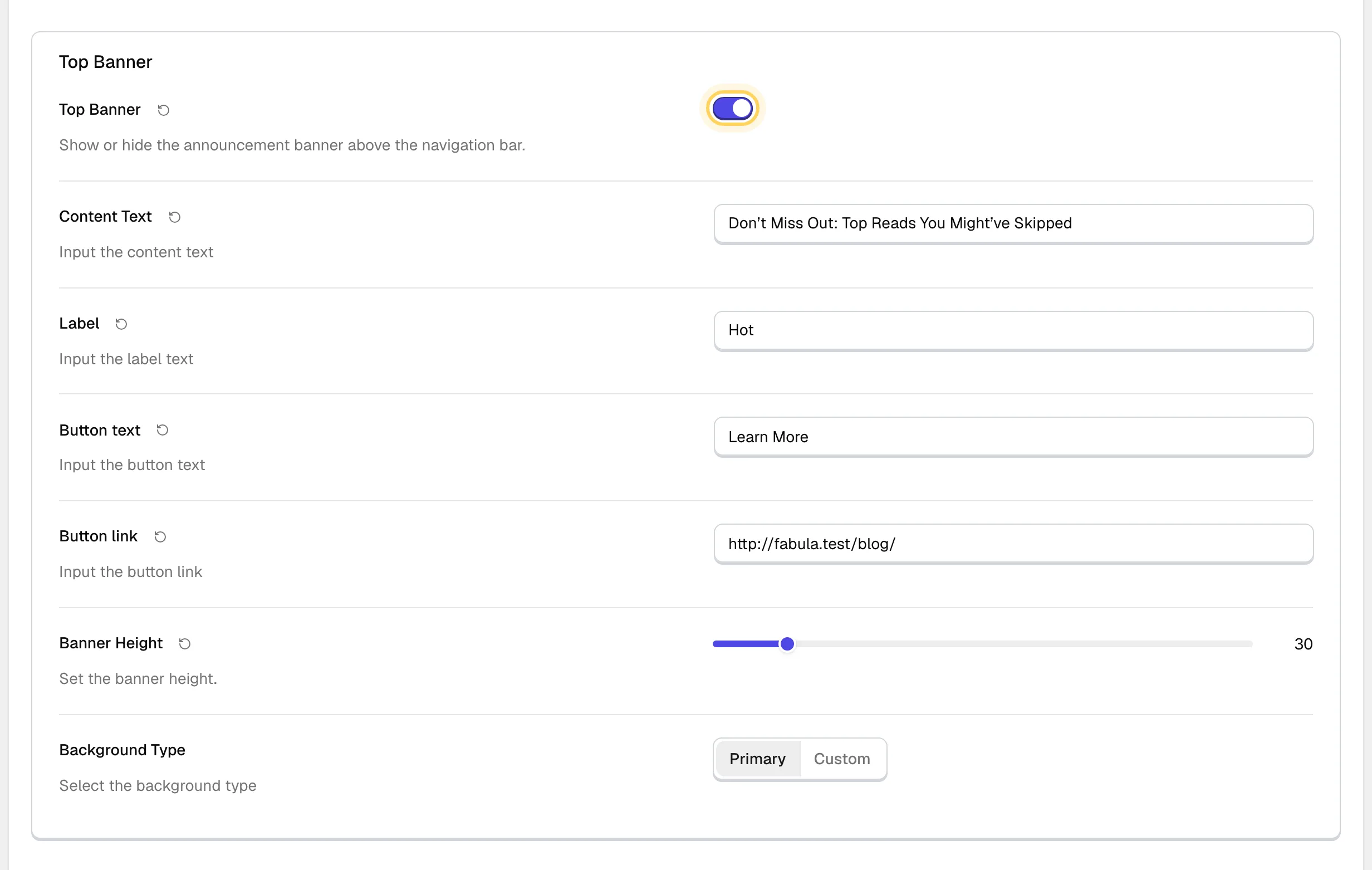
Shows or hides the bar.
The message. Basic formatting and links are allowed.
A small badge before the message.
The link's words.
The link's address. Without it, the button does not show.
From 20 to 100.
Primary uses your primary color. Custom uses the color below.
It appears while Background Type is Custom.
#Hide the banner on one page
Posts and pages have a Navigation Settings box. Turn off Enable Top Banner in it to hide the banner on that page only. It is on by default.
The banner never shows on the 404 page.
#What visitors see
The bar has a close button. After a visitor closes it, the banner stays hidden for them on the pages that follow. To see it again while testing, use a private window.
Related: Menus and the header.
Last updated
Was this article helpful?

On this page
