
Forms & Popups - Monogram
Monogram integrates with Contact Form 7 for forms and Boxzilla for popups.
#Contact Form 7
Contact Form 7 is listed as a recommended plugin. The theme provides:
- Custom Elementor widget (the Contact Form 7 widget) - drag and drop any CF7 form into your Elementor layouts
- Theme-styled forms - form elements automatically match the theme design system (colors, typography, spacing)
- Dark/light mode - forms adapt to the active color scheme
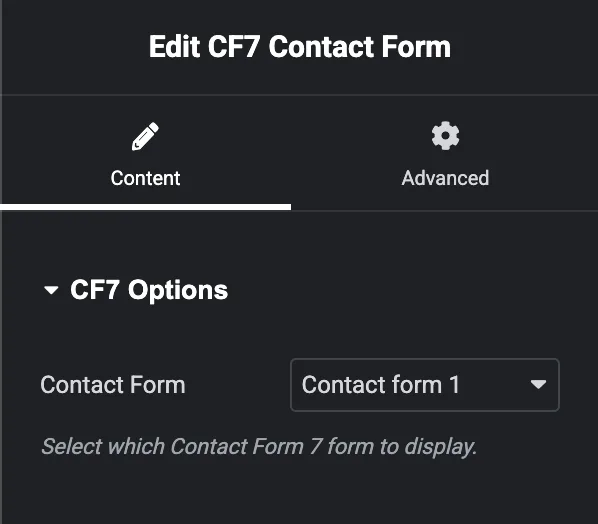
#Using the Widget
- Create your form in Contact > Add New
- In the Elementor editor, search for "Contact Form 7" in the widget panel
- Drag the widget to your section
- Select your form from the dropdown
- The form renders with theme styling applied
#Boxzilla Popups
Boxzilla provides popup and slide-in boxes for calls-to-action, newsletter signups, or announcements.
#Theme Integration
- Auto-close on navigation - when Barba.js page transitions are active, Boxzilla popups automatically close during page changes (controlled by the close-popup-on-transition setting setting, default: true)
- Vendor wrapper - handles proper initialization
- Design compatible - popups inherit theme styling
#Configuration
Configure Boxzilla popups under Boxzilla > Add New in the WordPress dashboard. Set triggers (scroll %, time delay, exit intent), position, and content.
Info: If popups don't reappear after page transitions, verify that the close-popup-on-transition setting is enabled in Appearance > Customize > Page Transitions.
#The call-to-action above the footer
The large "let's work together" block that sits above the footer on the demo is a Boxzilla box, not a theme setting. This catches people out, because every other block on the page comes from either Elementor or the Customizer, so that is where you look first and there is nothing there.
To find it, open [[Boxzilla > Boxes]] and look for the box whose content is an Elementor template. Its markup carries the jkd-before-footer-template class, which is what shows up if you inspect the section in a browser.
From there:
- Edit the content by opening the Elementor template the box points at
- Change when it appears with the box trigger and position settings
- Remove it from the site by setting the box to inactive, or by deleting it
Turning the box off removes it everywhere at once. To hide it on a single page, use the box rules to exclude that page rather than deleting the box.
Last updated
Was this article helpful?

On this page
