
Plugins Installation - Monogram
Monogram relies on several plugins to deliver its full feature set. After activating the theme, you will see a notification bar at the top of your WordPress dashboard prompting you to install the required plugins.
#Required Plugins
These four plugins must be installed and activated for the theme to function correctly:
Plugin | Source | Description |
|---|---|---|
JKDEVKIT | Bundled with theme | jkdevstudio framework - provides the Kirki Customizer wrapper, license activation, and shared utilities |
Advanced Custom Fields PRO | Bundled with theme | Custom fields for portfolio metadata, header settings, and menu customizations |
Kirki | WordPress.org | Customizer framework powering Monogram 17 Customizer panels |
Elementor | WordPress.org | Page builder for creating and editing pages with Monogram 22 custom widgets |
#Installing Required Plugins via TGMPA
Monogram uses the TGM Plugin Activation (TGMPA) library to manage required plugin installations. Here is how to install them:
- After activating the Monogram theme, look for the notification bar at the top of your dashboard that says "This theme requires the following plugins..."
- Click Begin installing plugins (or Begin activating plugins if some are already installed).
- On the plugin installation page, select all plugins by checking the checkbox at the top of the list.
- From the Bulk Actions dropdown, select Install and click Apply.
- Wait for all plugins to install. This may take a moment for the bundled plugins.
- Once installed, return to the plugin list, select all plugins again, choose Activate from the Bulk Actions dropdown, and click Apply.
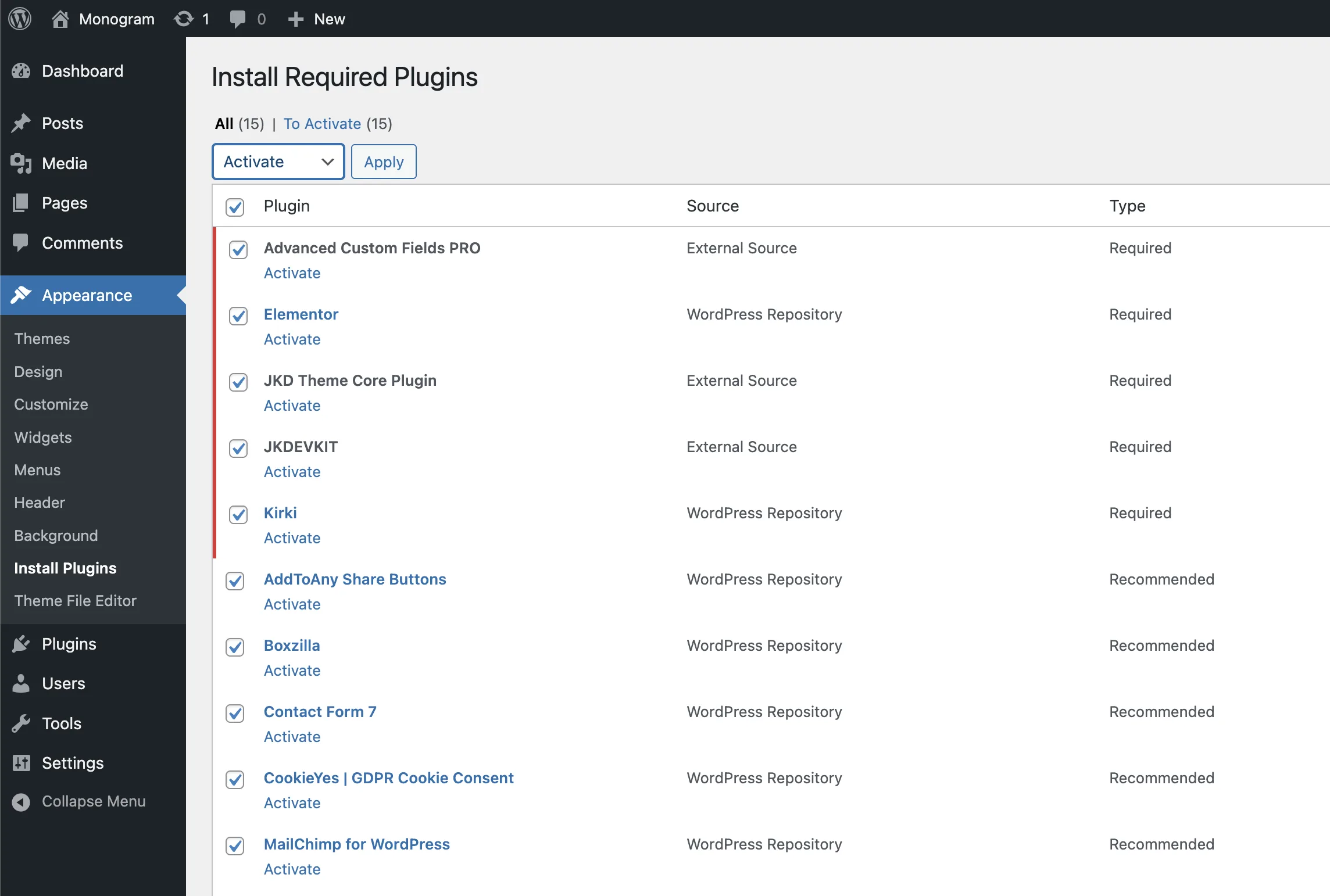
You can also install plugins one by one by clicking the Install link next to each plugin name in the TGMPA list.
#Recommended Plugins
These plugins are optional but add valuable functionality to your Monogram site:
Plugin | Purpose |
|---|---|
One Click Demo Import | Import the full demo site content, widgets, and Customizer settings with one click |
Contact Form 7 | Contact forms - Monogram includes a styled CF7 Elementor widget |
MailChimp for WordPress | Newsletter subscription form integration |
AddToAny Share Buttons | Social sharing buttons on posts and portfolio items |
Boxzilla | Popup boxes and call-to-action overlays |
CookieYes | GDPR-compliant cookie consent banner |
Weglot or TranslatePress | Multilingual site translation |
Yoast SEO | Search engine optimization tools |
WP Search with Algolia | Lightning-fast portfolio search with Algolia |
Recommended plugins appear in the TGMPA list alongside required plugins. Install any that you need for your site.
#Verifying Plugin Status
To check that all required plugins are properly installed and active:
- Go to Dashboard > Appearance > Install Plugins.
- All required plugins should show a status of Active.
- If any required plugin shows Not Installed or Inactive, install or activate it.
Alternatively, go to Dashboard > Plugins > Installed Plugins and verify that JKDEVKIT, Advanced Custom Fields PRO, Kirki, and Elementor are all listed and active.
#Next Steps
With all plugins installed, proceed to import the demo content for a quick start, or jump to Initial Configuration if you prefer to set things up manually.
Last updated
Was this article helpful?

On this page
