
Blog Post Creation - Monogram
Monogram enhances standard WordPress blog posts with additional layout options, rich metadata display, and built-in engagement features.
#Creating a Blog Post
Go to Dashboard > Posts > Add New. Write your post using the WordPress block editor (Gutenberg) as usual. Monogram adds a per-post settings panel and enriches the front-end display with theme-specific features.
#Per-Post Layout Override
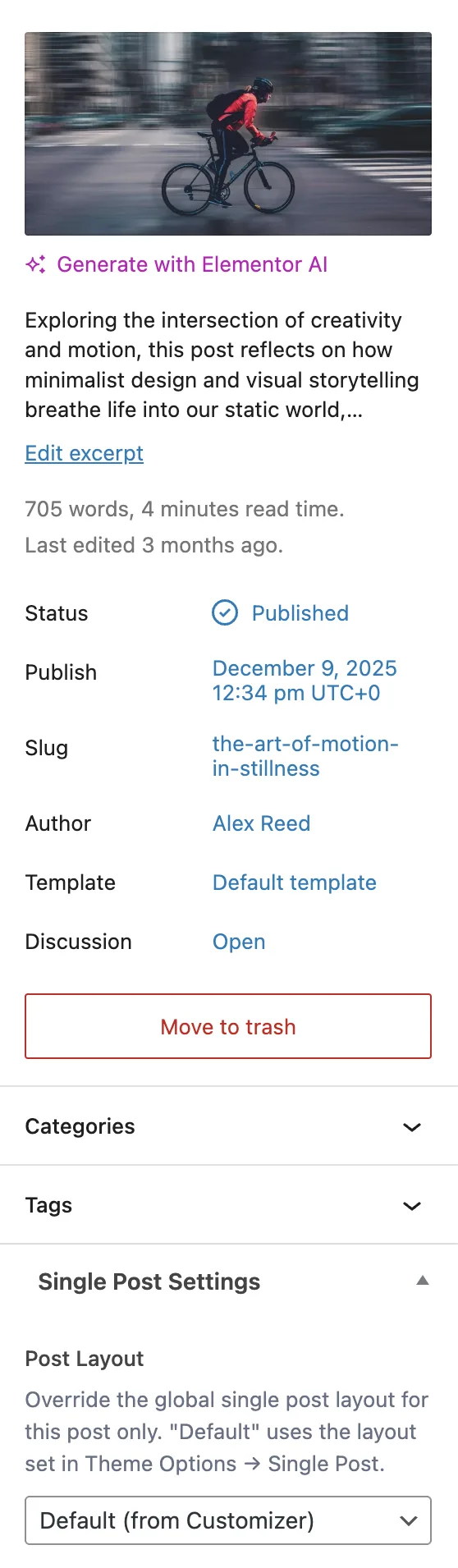
Each post has a Single Post Settings panel in the editor sidebar with one field:
Field | Key | Options | Default |
|---|---|---|---|
Post Layout |
| Default (from Customizer), Classic, Split | Default |
- Default uses whichever layout is set globally in Appearance > Customize > Single Post
- Classic places the featured image above the content in a traditional blog format
- Split divides the header into two columns - metadata on one side, featured image on the other
This lets you override the global layout on a per-post basis without changing the site-wide setting.
#Single Post Features
Every single blog post page can display the following elements, each controlled via Appearance > Customize > Single Post:
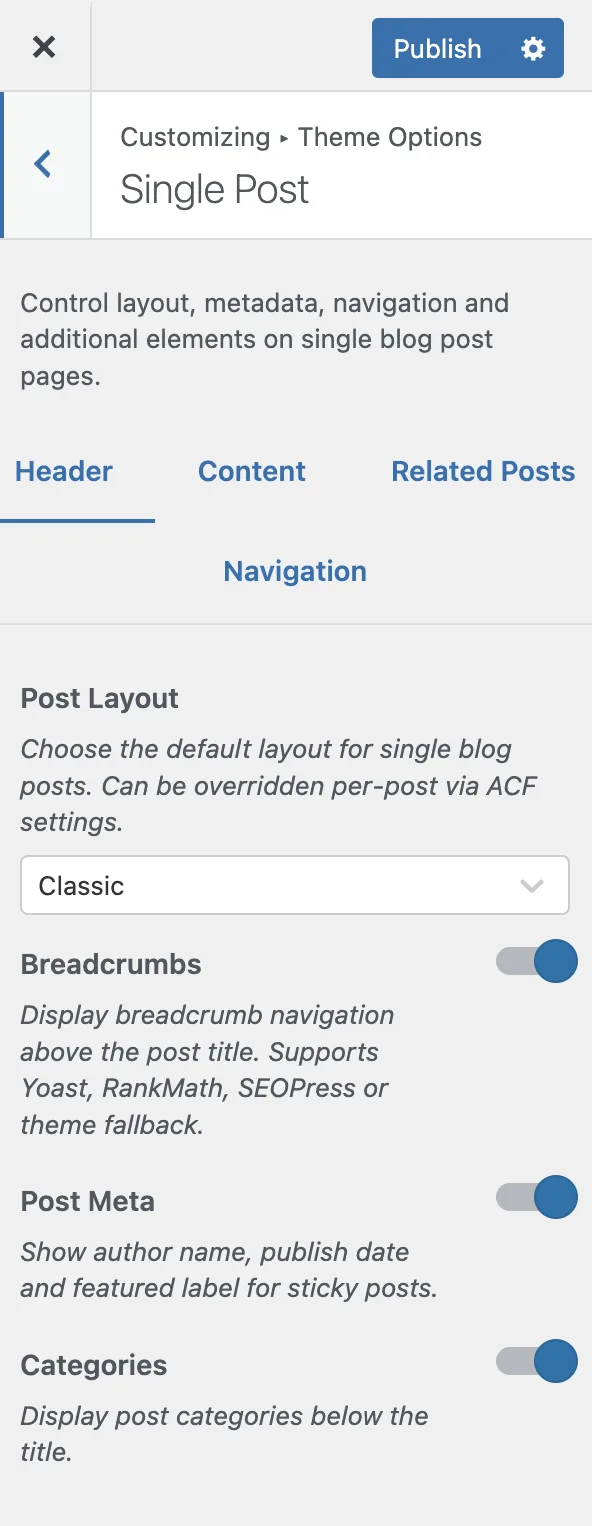
#Header Section
- Breadcrumbs - navigation trail above the title. Auto-detects your SEO plugin (Yoast SEO, RankMath, SEOPress) or falls back to the theme built-in breadcrumbs
- Post meta - author name with avatar, publication date, and a "Featured" label for sticky posts
- Categories - clickable category links below the title
#Content Section
- Featured image - displayed below the header with a subtle parallax animation
- Full post content - your editor content rendered with theme typography
- Tags - post tags displayed below the content
- Share buttons - social sharing via AddToAny (configurable shortcode in Customizer)
- Comments - standard WordPress comments with a comment form
#Navigation Section
- Post navigation - previous and next post links with optional thumbnail previews
- Auto-load next post - when enabled, the next post loads automatically as the reader reaches the end (disabled by default)
#Customizer Settings Reference
All single post settings live under Appearance > Customize > Single Post, organized in three tabs:
#Header Tab
Setting | Type | Default |
|---|---|---|
Post Layout | Select (Classic, Split) | Classic |
Breadcrumbs | Toggle | On |
Post Meta | Toggle | On |
Categories | Toggle | On |
#Content Tab
Setting | Type | Default |
|---|---|---|
Featured Image | Toggle | On |
Tags | Toggle | On |
Share Section | Toggle | On |
Share Shortcode | Text | - |
Comments | Toggle | On |
#Navigation Tab
Setting | Type | Default |
|---|---|---|
Post Navigation | Toggle | On |
Navigation Thumbnails | Toggle | On |
Auto Load Next Post | Toggle | Off |
#Blog Archive Settings
The blog archive page (Dashboard > Settings > Reading > Posts page) is configured under Appearance > Customize > Blog Archive:
Setting | Options/Range | Default |
|---|---|---|
Post Layout Style | Default (image + content), Overlay (content over image), Simple (compact list) | Default |
Enable Sidebar | Toggle | On |
Sidebar Position | Left, Right | Right |
Column Count | 1-4 | 3 |
Category Filter | Toggle | On |
Featured Image | Toggle | On |
Featured Label (sticky posts) | Toggle | On |
Excerpt Length | 5-60 words | 20 |
The Category Filter adds a row of clickable category links above the post grid, letting visitors filter posts without navigating to a separate category archive page.
Last updated
Was this article helpful?

On this page
