
Blog Settings - Monogram
Monogram keeps blog settings in three Customizer sections: one for archive listings, one for individual posts, and one for the date format they share with the rest of the site.
#Blog archive
Open AppearanceCustomizeBlog Archive to control how posts appear on listing pages.
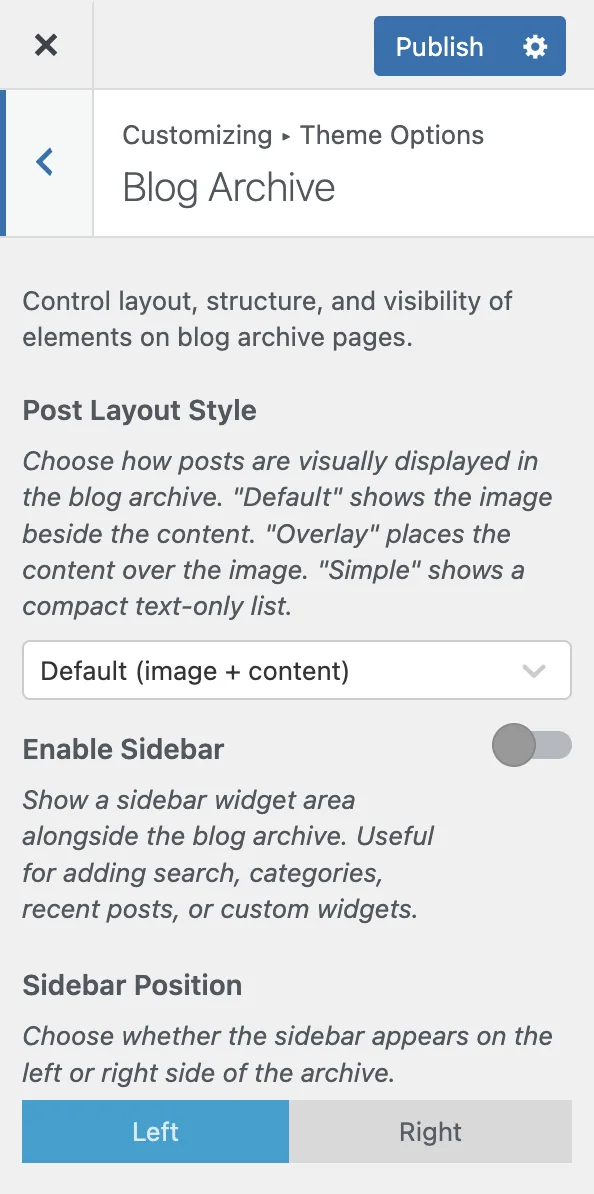
How posts are displayed. Default puts the image beside the content, Overlay places the content over the image, Simple is a compact text-only list.
Shows a widget area alongside the archive, for search, categories, recent posts or your own widgets.
Which side the sidebar sits on. Only appears when the sidebar is enabled.
Columns on desktop, from 1 to 4.
A row of clickable category links above the post list.
The post thumbnail on archive cards.
A badge on sticky posts, so they stand out from the rest.
Words shown in the excerpt, from 5 to 60. Around 15 to 25 keeps cards compact.
Aspect ratio for archive thumbnails.
#What the three layout styles look like
Default is the standard blog layout: a featured image on one side, and the title, excerpt, categories and date on the other.
Overlay positions the post content over the featured image with a dark overlay behind the text, for a more visual, magazine-like listing.
Simple drops the images and leaves a minimal text list, which suits a content-heavy blog where readers scan by title.
The category filter renders as a row of buttons above your posts. Clicking one filters the archive without a page reload.
#Date format
Open AppearanceCustomizeTheme OptionsDate Format. This section controls the date printed across blog cards, single posts, search results, the custom post type list, portfolio cards and the Elementor posts list widget.
Where the format comes from. WordPress setting follows [[Settings > General]], so the date reads correctly in your site language. Theme style keeps the compact format each template shipped with before version 1.3.8. Custom format takes a format string of your own.
A PHP date format string, the same syntax [[Settings > General]] uses. d.m.Y gives 31.07.2026, and j. F Y gives 31. Juli 2026. Only appears when the format is set to custom. Left empty, it falls back to the theme style.
Month and weekday names are translated by WordPress from your site language, so a German site prints Juli without any translation file. The format decides the word order, which is why a site in a language that puts the day first needs this set to the WordPress setting or a custom format.
Theme style is not one format. Blog areas keep Jul 31, 2026 and portfolio cards keep 2026.07.31, which is what each of them looked like before the setting existed. The other two choices apply the same format everywhere.
Portfolio cards ignored this section until version 1.3.8.1 and always printed 2026.07.31. If your project cards still show that date on a site set to the WordPress setting, update the theme and the JKD Theme Core Plugin.
#Single post
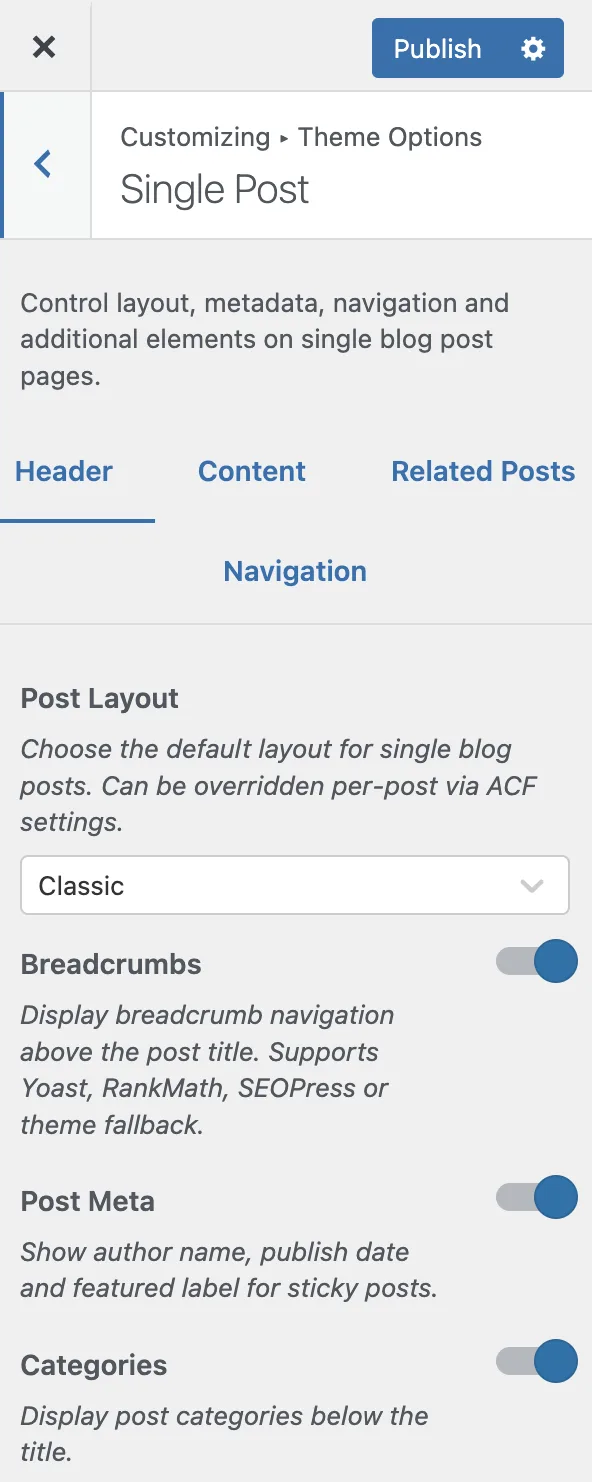
Open AppearanceCustomizeSingle Post to configure individual post pages. Its settings are grouped into three tabs.
#Header tab
Classic is a traditional top-to-bottom layout. Split puts the header on one side and the content on the other. A per-post ACF setting overrides this.
Breadcrumb navigation above the title. Reads from Yoast, Rank Math or SEOPress when one is active, and falls back to the theme breadcrumbs.
Author name, publish date, and the featured label on sticky posts.
Post categories below the title.
#Content tab
The featured image below the header, with parallax as you scroll.
The tag list below the content.
Social sharing buttons.
The shortcode that renders those buttons, such as the AddToAny one. Only appears when the share section is enabled.
The comment list and form at the end of the post.
#Navigation tab
Previous and next post links at the end of the post.
Featured image thumbnails inside those links. Only appears when navigation is enabled.
Loads the next post when the reader reaches the end of the current one, for continuous reading.
Auto load next post appends the next post over AJAX as you scroll, and updates the browser address bar as each one comes into view, so bookmarking and sharing still land on the right post.
Last updated
Was this article helpful?

On this page
